Copilot Studio Agent Tutorial: Step-by-Step Guide for 2026
· AI & Copilot · 12 min read
By Juan Pedro Márquez
📋 Quick Reference
Audience: Enterprise architects, IT leads, and developers building their first Copilot Studio agent
Time to read: ~13 minutes
Skill level: Beginner to intermediate
Prerequisites: Copilot Studio license, Power Platform environment with Dataverse, SharePoint site with content, Teams admin access
What you'll get: Hour-by-hour steps to deploy a working agent to Teams in one business day, plus the 20 test questions every deployment needs
What "One Day" Actually Means
Before getting into the steps: one day doesn't mean a continuous 8-hour sprint. It means that if you sit down with clear scope and the right setup, you can have a working Copilot Studio agent connected to a real knowledge source and deployed to Teams before end of business.
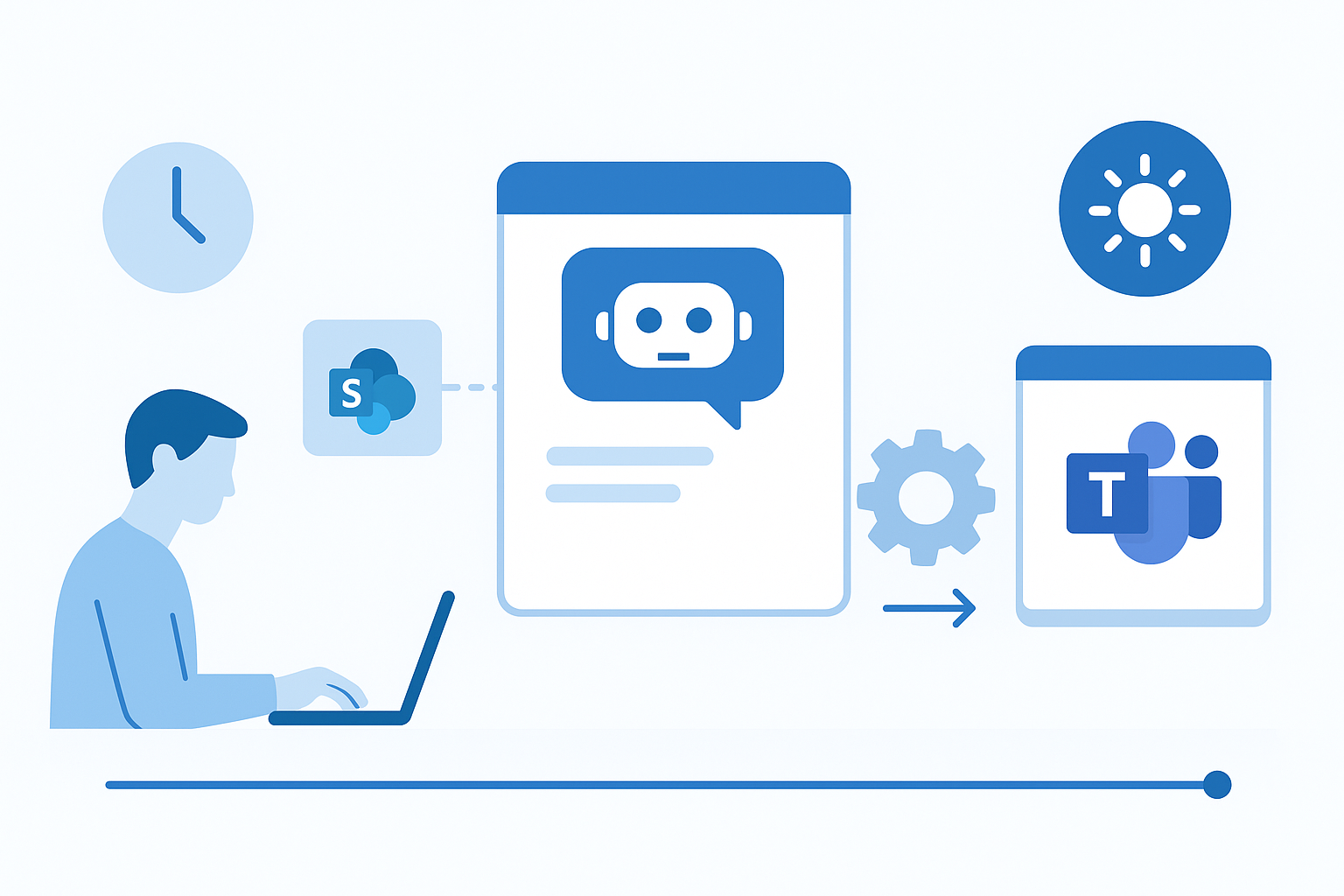
That's a specific, achievable outcome. Not a prototype. Not a demo with hardcoded responses. A functional agent that answers questions from your organization's actual content, hands off to a human when it can't, and runs in the channel your employees already use.
I've guided 15+ enterprise teams through their first Copilot Studio deployment over the past year. The teams that finish in a day are the ones who define scope first. The teams that spend three weeks in planning have usually convinced themselves they need to solve ten problems at once.
One agent, one topic, one knowledge source. That's the constraint that makes the one-day outcome real.
Prerequisites: What You Need Before You Start
Licensing. Copilot Studio requires a license — either Copilot Studio standalone or as part of Microsoft 365 Copilot. If your organization has Power Platform licenses, you may already have access to the environment. Verify this before starting.
Environment. You need a Power Platform environment where you can create and publish a Copilot. In enterprise settings, this is typically provisioned by IT. If you're working in a sandbox, make sure it's an environment with Dataverse enabled.
Knowledge source access. You need either a SharePoint site, a set of documents, or a public URL that contains the content your agent will answer from. The source needs to be accessible from the Power Platform environment — which means the SharePoint site can't be restricted to a user group that doesn't include the service identity running the agent.
Microsoft Teams connection. To publish to Teams, you need Teams admin access or a relationship with someone who has it. Publishing an agent to Teams requires approval in the Teams admin center.
Verify all four before starting. A missing prerequisite discovered mid-build typically costs more time than the build itself.
Hour 1: Setup and Scope Definition
Start with the Use Case, Not the Tool
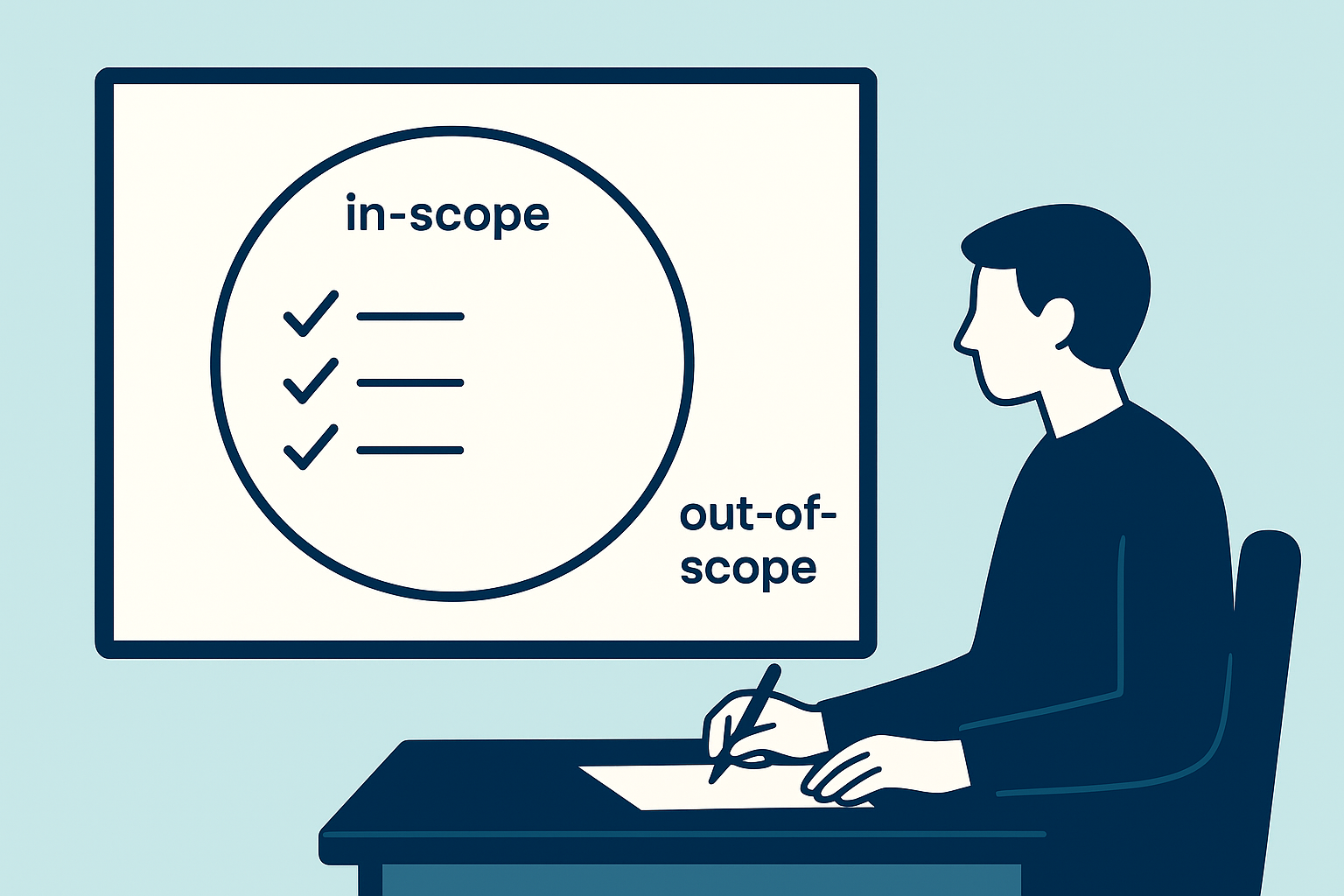
The most common first-time mistake is opening Copilot Studio before defining what the agent will — and won't — answer.
Spend the first 20-30 minutes writing down:
- The specific question type the agent handles ("What is our PTO policy?" not "HR questions")
- The knowledge source where the answers live (one specific SharePoint site, one document library)
- The fallback behavior when the agent can't answer (escalate to a specific contact? Direct to HR portal?)
- The out-of-scope topics the agent should politely redirect
This sounds obvious. It's consistently skipped. And it's consistently the reason agents give wrong answers — because the scope was never defined, so the agent tries to answer everything.
Create Your Copilot
Navigate to Microsoft Copilot Studio at copilotstudio.microsoft.com. Sign in with your work account, select your environment, and click "Create."
Give your agent a name that reflects its scope: "HR Policy Assistant" not "Company Bot." The name appears in Teams — it should tell employees exactly what to ask.
Under the "Instructions" field, write 3-5 sentences describing what the agent does and what it doesn't do. This is the system prompt that shapes every response. Example:
"You are an HR Policy Assistant for Contoso. You answer questions about company HR policies, employee benefits, and leave procedures. Your answers are based only on the official HR documentation provided. If you can't answer a question from the documentation, you direct employees to [email protected]."
Short, specific, and honest about limitations. That instruction set alone eliminates a large class of unhelpful responses.
Hour 2: Connecting Your Knowledge Source
Adding Knowledge to Your Agent
In the left panel, navigate to "Knowledge." This is where you connect the content your agent will use to generate answers.
Adding knowledge sources to Copilot Studio supports multiple input types:
SharePoint sites — paste the URL of the SharePoint site or document library. Copilot Studio indexes the accessible content. Important: it indexes what it can access, not what it should access. Scope your SharePoint site before connecting it.
Uploaded files — PDF, Word, and PowerPoint files can be uploaded directly. This is the cleanest option for a first deployment if your content is in static documents. Upload the specific files relevant to your scope — not "all HR documents."
Public websites — for documentation hosted on external sites. Less common for internal agents.
Best practice for first deployments: use a single SharePoint document library scoped to exactly the content you want the agent to answer from. Don't connect the entire SharePoint site if your documents are organized well enough to link to a specific library.
Generative Answers: Understanding What's Happening
When you connect a knowledge source, Copilot Studio uses generative answers — it takes the user's question, retrieves relevant content from your knowledge source, and generates a response grounded in that content.
This is different from a traditional keyword-search chatbot. The agent reasons about the content to produce a natural language answer. The quality of the answer depends on the quality and organization of your knowledge source — not on prompt engineering.
Disorganized SharePoint → disorganized answers. This is the most consistent pattern I've seen across enterprise deployments.
Hour 3: Building the Conversation Flow
Understanding Topics
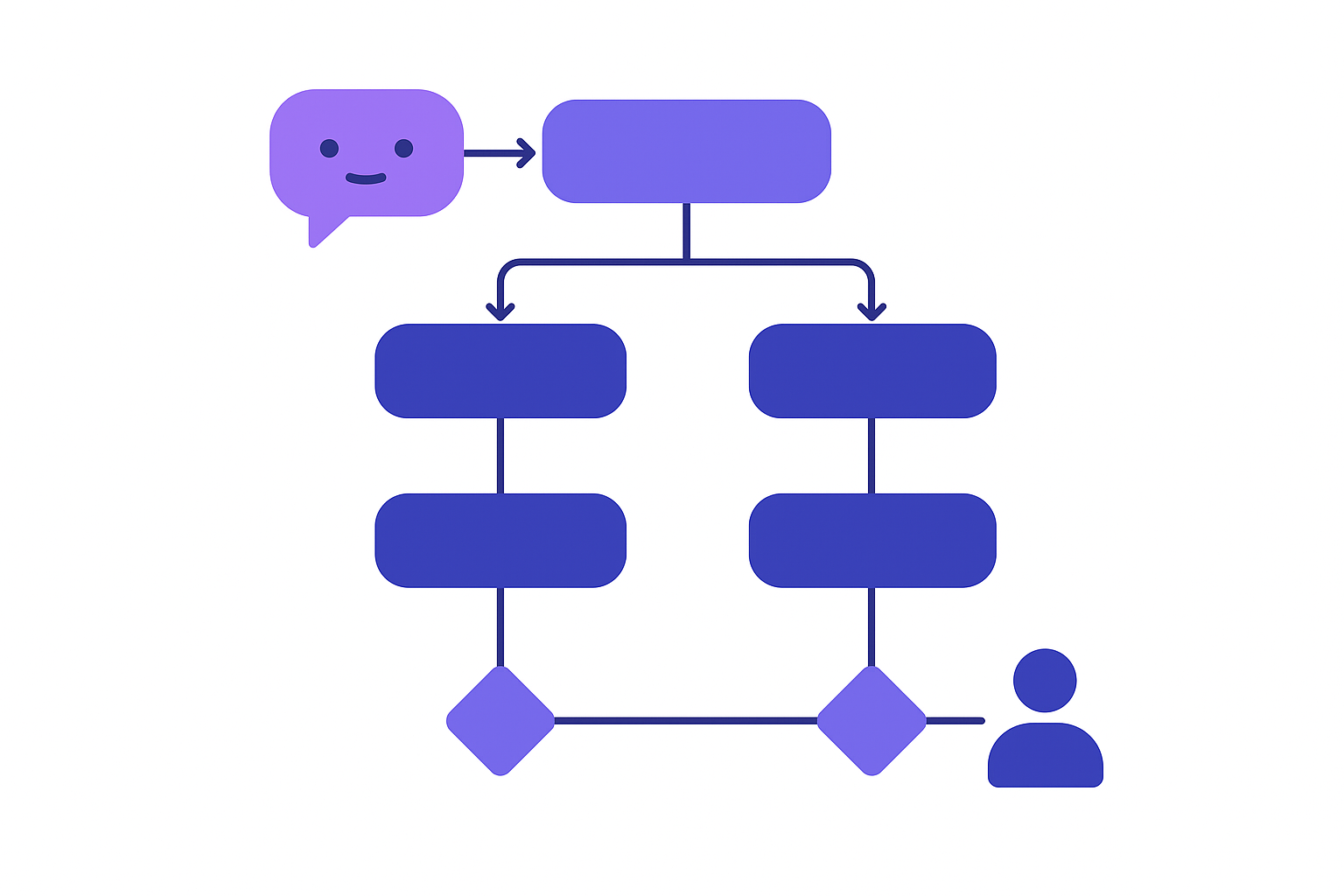
Copilot Studio organizes agent behavior into Topics — conversation flows triggered by user intent. For a knowledge-based agent, most of your answers will come from the generative answers capability you set up in Hour 2. But you'll need a few manual topics for consistent handling.
Topics to create manually:
Greeting topic — triggered when the user starts the conversation. Keep it brief and specific: "Hi! I'm the HR Policy Assistant. Ask me anything about our PTO, benefits, or leave policies." Don't list every capability — state the primary one.
Escalation topic — triggered when the agent can't answer or the user explicitly asks for a human. Define exactly what happens: a message with a contact, a redirect to a specific URL, or a handoff to a Teams agent. Vague escalation ("I'll connect you with someone") that doesn't resolve anything is worse than no escalation.
Out-of-scope topic — triggered by questions outside the defined scope. A polite redirect: "I'm specialized in HR policies. For questions about [other topic], please contact [relevant team]."
Fallback Behavior
In the "System fallback" topic, configure what happens when the generative answers capability doesn't find a confident answer. The default behavior is often generic. Replace it with a specific message that includes the escalation path you defined in scope: "I couldn't find a clear answer to that in our HR documentation. Contact [email protected] for help with this question."
Hour 4: Testing with Real Questions
The 20-Question Protocol
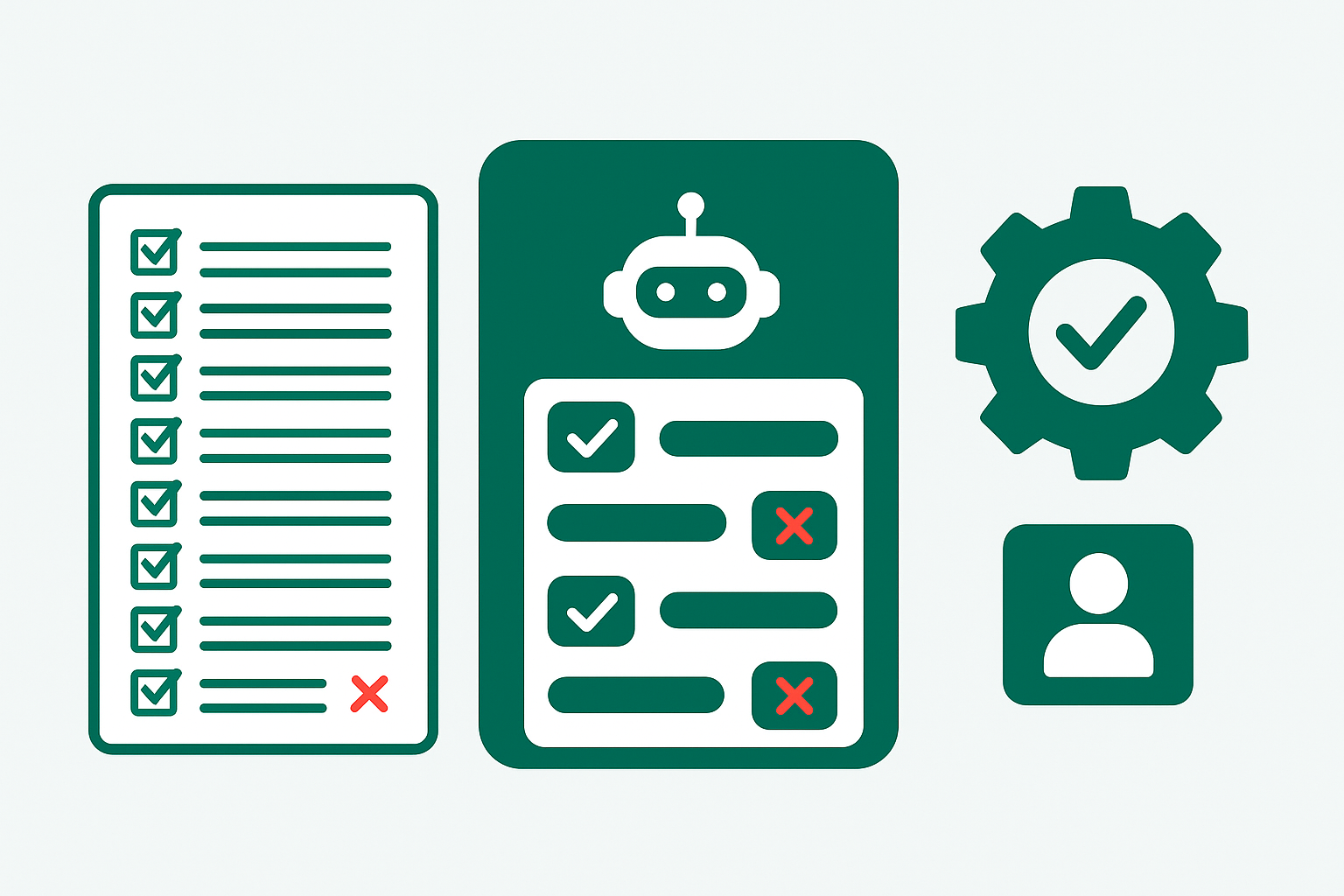
Don't test with hypothetical questions. Test with real questions from real employees.
The fastest way to get these: ask your manager, an HR team member, or anyone who handles the queries your agent will now answer — what are the 20 questions you get most often?
Test every one of them. For each response, evaluate:
- Is the answer accurate based on the source document?
- Is the source document cited?
- Is the response an appropriate length (not a 500-word essay for a yes/no question)?
- What happens when you ask a follow-up question?
- What happens when you ask something out of scope?
Testing in Copilot Studio uses a real-time chat panel in the authoring interface. You can test without publishing.
Common Issues at This Stage
Irrelevant answers: The knowledge source is too broad. Scope it down. Remove documents that aren't directly relevant to the question types you defined.
Answers from wrong documents: Multiple documents cover the same topic with conflicting information. Identify the authoritative source and remove or demote the others.
Generic or unhelpful responses: The system prompt (Instructions) is too vague. Add specificity about the use case and constraints.
Missing answers on known topics: The content exists in the knowledge source but the agent can't find it. Check if the document is indexed — some formats (scanned PDFs, protected files) don't index correctly.
Fix the issues you find before publishing. An agent that gives wrong answers at launch trains employees to ignore it permanently.
Hour 5: Publishing to Teams
Publishing the Agent
Once testing passes your 20-question standard, navigate to "Publish" in the left panel. Click "Publish" to push the current version of your agent.
Publishing doesn't automatically put the agent in Teams. It makes the agent available for channel configuration.
Connecting to Teams
Navigate to "Channels" and select "Microsoft Teams." Follow the configuration steps to publish your Copilot Studio agent to Teams.
Two options for Teams deployment:
Personal app — the agent appears as a personal app in Teams that employees can install and use directly. This requires Teams admin approval for organization-wide availability.
Shared channel — the agent is added to a specific Teams channel. Employees in that channel can @mention the agent. Better for departmental rollouts before going organization-wide.
For a first deployment, start with a specific channel or a small group of early testers. Don't push to all employees until you've run the 20-question protocol with real users in Teams.
Security and Access Controls
Before publishing broadly, review the security and governance settings for your agent. By default, Copilot Studio agents in Teams inherit Teams authentication — employees are authenticated via their Microsoft 365 account. For most internal HR or operations agents, this is appropriate.
If your agent will access content with varying sensitivity levels, configure authentication to ensure it only surfaces content the requesting user has permission to see.
Day 2: What to Improve After Your First Day
A working agent is a starting point, not a finished product. The improvements that matter most in week two:
Refine the knowledge scope based on what questions the agent couldn't answer. Add specific documents rather than broadening the source.
Review the conversation logs — Copilot Studio provides analytics on what users asked and how the agent responded. Look for patterns in failed queries. These reveal either knowledge gaps or scope drift.
Add topic refinements for the question patterns you see most in the logs.
Communicate the agent to employees with clear guidance on what it's for. An agent nobody knows about helps nobody.
Related Reading
For the broader question of whether Copilot Studio is the right tool for your use case — or whether you need Azure AI Foundry for a more complex agent — the decision framework is here: How to Choose Between Copilot Studio, Azure AI Foundry, and Azure OpenAI.
For organizations deploying Copilot M365 alongside custom agents and concerned about governance, the framework is here: The Microsoft Copilot M365 Governance Framework: What No Partner Will Tell You.
The Thing That Actually Determines Success
The 20-question test is not a formality. It's the difference between an agent that earns trust and one that gets reported to IT as broken after the first week.
The agents that last in enterprise deployments are the ones with narrow scope, accurate answers, and clear escalation paths. The agents that get replaced are the ones that tried to answer everything and got most of it wrong.
One agent, one topic, one knowledge source. Get that right. Everything else is iteration.
First Copilot Studio Agent — Go-Live Checklist
Before publishing your agent to Teams, run through every item here:
Prerequisites verified
- [ ] Copilot Studio license confirmed in admin center
- [ ] Power Platform environment with Dataverse provisioned
- [ ] SharePoint knowledge source accessible from the environment
- [ ] Teams admin access confirmed (or Teams admin scheduled for publishing step)
Knowledge source ready
- [ ] Single, well-scoped SharePoint site or document library identified
- [ ] Documents updated and accurate (stale content produces unreliable answers)
- [ ] Document names descriptive (Copilot Studio uses file names as context clues)
- [ ] No sensitive documents in the scope — confirmed with data owner
Agent built and configured
- [ ] Agent name and description set clearly (agents are visible to end users)
- [ ] Topic defined with clear trigger phrases
- [ ] Knowledge source connected and indexed
- [ ] Fallback behavior configured (escalation path, not just "I don't know")
- [ ] Out-of-scope response polite and redirects correctly
- [ ] Welcome message set
Tested before launch
- [ ] 20 real user questions answered correctly (collected from actual employees)
- [ ] 5 out-of-scope questions handled gracefully (no hallucinations)
- [ ] Escalation path tested end-to-end
- [ ] Agent tested from a user account, not just admin account
- [ ] Mobile Teams client tested (not just desktop)
Published to Teams
- [ ] Agent submitted for Teams admin approval
- [ ] Announcement message prepared for target user group
- [ ] Feedback channel identified (where users report issues)
- [ ] Agent owner assigned for ongoing maintenance
One agent, one topic, one knowledge source. That constraint is what makes the one-day deployment real. Resist scope expansion until the first agent is live and trusted.