AI Agents in Microsoft 365: Build Real Solutions (2026)
· AI Agents · 10 min read
By Juan Pedro Márquez
The Chatbot Trap Most Organisations Fall Into
Last month I reviewed the Microsoft 365 Copilot deployment at a manufacturing firm in Germany. Adoption numbers looked reasonable — 58% of licensed users active weekly. But when I dug into what they were actually doing, the picture was less encouraging.
They were summarising emails. Drafting Teams replies. Generating meeting notes. All useful, but at its core they were using a €30/user/month AI platform as a fancier autocomplete.
The business still had 750 IT helpdesk tickets per month — most for the same 15 recurring issues. HR still manually chased new hire paperwork through email. The procurement team still copy-pasted PO numbers between SAP and their approval workflow.
None of that changed because nobody built agents.
There is a meaningful difference between using Microsoft 365 Copilot as a chat interface and deploying it as an AI agent that takes action on your systems. This post is about crossing that line.
Before you start
Before you spin up Copilot Studio, make sure these are actually in place — not just ticked on a procurement spreadsheet:
- [ ] Microsoft 365 Copilot licences assigned to ALL target users in Azure AD (not just purchased at tenant level)
- [ ] Copilot Studio capacity available — check your environment capacity in the Power Platform admin centre
- [ ] SharePoint knowledge sources cleaned up and sensitivity-labelled in Microsoft Purview before adding them to any agent
- [ ] Power Platform DLP policies reviewed — confirm the connectors your agent will call (e.g. ServiceNow, SAP) are in the correct data group
- [ ] At least one service account (or managed identity) with the minimum required permissions to the backend systems the agent will write to
- [ ] A defined escalation path — what happens when the agent cannot resolve a request and no flow covers it
- [ ] Sign-off from your Data Protection Officer if the agent will handle personal data (GDPR Article 22 applies when automated decisions affect individuals)
What Makes an AI Agent Different from Copilot Chat
When you open the Microsoft 365 Copilot chat in Teams and ask it to summarise your emails, you are using it as a general-purpose assistant. It can generate text, search your organisational data, and draft documents. But it is not acting on anything autonomously. Every output requires you to read it and decide what to do next.
A declarative agent changes this dynamic in three ways.
Scoped Instructions
A declarative agent has a specific system prompt that defines what it does and, critically, what it refuses to do. Instead of a general assistant that can do anything, you have a focused agent that handles a defined domain — IT support, HR onboarding, supplier queries — and handles it well.
Scoping is where most agent projects either succeed or fail. A narrowly scoped agent deployed well outperforms a broadly scoped agent deployed poorly every single time. My recommendation: pick one domain, go deep, and resist the urge to expand scope until the first use case is stable in production.
Grounded Knowledge
Rather than searching across your entire Microsoft 365 tenant, a declarative agent works with specific knowledge sources: a curated SharePoint site, a set of approved documents, a SharePoint list. Answers are grounded in authoritative, current content — not whatever Copilot finds in email threads from three years ago.
I have seen agents hallucinate confidently when their knowledge source is a SharePoint site that nobody has maintained in 18 months. Content quality directly determines answer quality. There is no workaround for stale data.
Actions That Complete Tasks
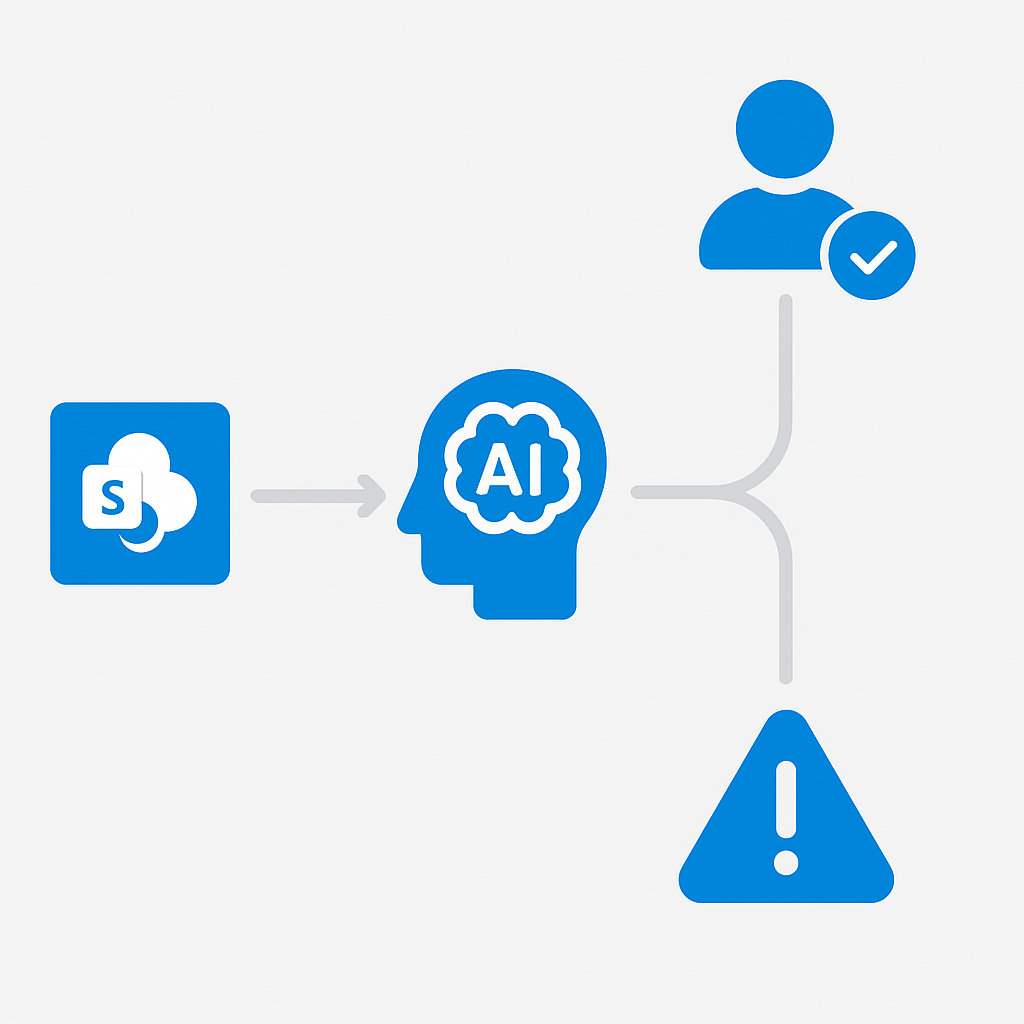
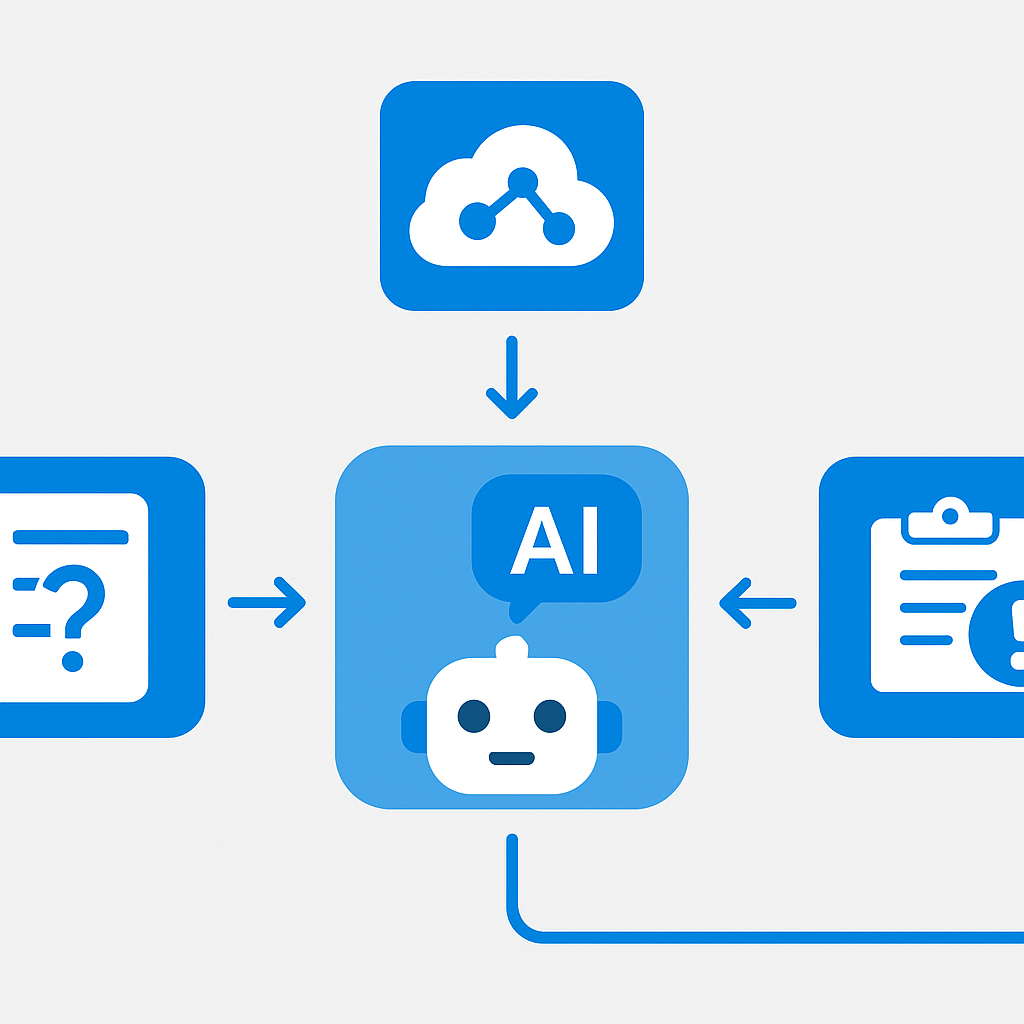
This is what separates agents from chatbots. A declarative agent can call Power Automate flows, write to SharePoint lists, create records in external systems via APIs, send adaptive cards for approvals, or trigger any HTTP-based integration.
When the IT helpdesk agent receives a request it cannot resolve from its knowledge base, it does not say "please contact IT." It collects the user details, creates a ServiceNow incident via a connected flow, and confirms the ticket number — all within the same conversation. That is a complete transaction, no human in the loop required.
Building a Declarative Agent in Copilot Studio
Here is the concrete path to a production agent. I will use the IT helpdesk scenario throughout.
Create and Configure the Agent
Go to copilotstudio.microsoft.com and select Create → New agent. Choose Skip to configure — the AI wizard produces generic agents that are fine for demos but too broad for production.
Write your system prompt with specificity:
You are the IT Support Agent for Contoso. You help employees with:
- Microsoft 365 access issues and licence assignments
- VPN connectivity (GlobalProtect v6.2 for Windows and macOS)
- Laptop provisioning requests via it.contoso.com/request
- Password reset and MFA re-registration

For any issue outside these topics, collect the user full name, department, and
issue description, then create a support ticket using the createServiceNowIncident action.

Do not provide hardware repair advice. Always escalate hardware faults to on-site support.
Vague instructions produce vague behaviour. The more specific the prompt, the more reliable the agent.
Add Knowledge Sources
In the Knowledge tab, point the agent at your IT knowledge base. Add the SharePoint site URL and select the document libraries containing runbooks and FAQs. Avoid adding your entire SharePoint tenant — scoped knowledge produces better answers and fewer hallucinations.
Enable Generative answers so the agent can synthesise responses from multiple documents rather than returning lists of links.
Connect an Action
In the Actions tab, select Add action → Create a new Power Automate flow. Build a flow that:
- Accepts
user_name,department,issue_description, andpriorityas inputs - Calls the ServiceNow API to create an incident
- Returns the incident number as a string
Back in Copilot Studio, the agent will now tell users: "I have created ticket INC0047291 for you. You will receive an email confirmation within 10 minutes." That is a complete transaction.
Publish to Teams
Publishing takes about two minutes:
- Click Publish in Copilot Studio and confirm the publishing checklist
- In Microsoft Teams Admin Center, navigate to Manage apps, find your agent, and set availability to Allowed
- Create an app setup policy to pin the agent in the Teams left rail for your target user group
Users interact with the agent in Teams through the familiar chat interface. There is nothing new for them to learn.
Questions to ask your team
These are the conversations I have with every customer before we build anything. Skip them and you will have them six months later — under worse circumstances.
- Who owns the knowledge sources after go-live? Many agents ship with a clean SharePoint knowledge base and nobody assigned to update it. Three months later the agent starts confidently giving wrong answers and users lose trust permanently. Assign a named owner on day one.
- What is the blast radius if the agent takes a wrong action? If your agent can create ERP records, cancel purchase orders, or send emails on behalf of someone — what is the worst case? Define this before you connect any action, and scope the service account permissions accordingly.
- Does this touch personal data under GDPR? If users are submitting names, employee IDs, health data, or anything that identifies a person, you need a lawful basis and a record of processing. In Spain and Germany especially, Data Protection Authorities are actively auditing AI tool deployments. Do not skip this.
- How will you measure success? "Users like it" is not a KPI. Define ticket deflection rate, resolution time, escalation rate. Without a baseline measured before launch, you cannot prove value to the business 90 days later.
- What happens when the agent is wrong? Plan the feedback loop. A button in the agent that says "this answer was wrong" that logs to a SharePoint list takes 20 minutes to build and gives you the data you need to improve the knowledge sources systematically.
Three Agents Worth Building in the Next 90 Days
Based on the enterprise deployments I have worked on across Spain, Germany, and the UK, these three scenarios consistently deliver measurable ROI within a quarter.
IT Self-Service Agent
Scope: Top 20 helpdesk FAQs from your knowledge base, password reset via Microsoft Graph API, automatic incident creation for anything unresolved.
Expected impact: 30–40% deflection of L1 tickets. At an average cost of €10–15 per ticket with 300 tickets per month, that is €900–1,350 per month in savings — often exceeding the Copilot licence cost for the team.
HR Onboarding Agent
Scope: Day 1 setup guidance for new hires — security training links, equipment request portal, benefits enrolment, org chart navigation, first-week calendar setup.
Expected impact: Reduces HR coordinator time per new hire from approximately 90 minutes to 20 minutes. At scale, this frees HR capacity for work that actually requires human judgment.
Procurement Assistant
Scope: Supplier policy questions, PO status lookups via a Power Automate action connected to your ERP, invoice approval routing notifications.
Expected impact: Procurement teams typically recover 3–4 hours per week previously spent manually chasing PO status across email threads and ERP screens.
Governance Before You Go Live
Before publishing any agent that can execute actions in backend systems, three things need to be in place.
Data Loss Prevention policies: Verify that your agent knowledge sources respect the sensitivity classifications configured in Microsoft Purview. An agent connected to a SharePoint site with overly broad permissions will surface content users should not see.
Scope validation: Test with users who do not have access to certain content and confirm the agent does not expose it. This takes 30 minutes and can prevent a serious security incident.
Action audit logging: Power Automate provides run history for every action invocation. Before going live, confirm your operations team knows where to find these logs and has a process for reviewing anomalous activity.
Under the EU AI Act, certain automated decision systems require additional documentation and human oversight mechanisms. If your agent is making consequential decisions — approving leave requests, routing complaints, assigning priority — get your legal team to assess whether it falls into a regulated category before go-live.
Your implementation checklist
Use this to track progress from first conversation to production deployment.
Plan
- [ ] Define the single use case for your first agent (resist scope creep)
- [ ] Identify and clean the SharePoint knowledge source(s) — no stale content
- [ ] Map every backend system the agent will write to and document the minimum required permissions
- [ ] Confirm DLP policies allow the connectors you need
Build
- [ ] Write the system prompt with explicit scope boundaries and refusal instructions
- [ ] Add scoped knowledge sources (not the full tenant)
- [ ] Build and test each Power Automate action flow in isolation before connecting to the agent
- [ ] Configure a "this answer was wrong" feedback mechanism
Test
- [ ] Run the agent as a user without elevated SharePoint permissions — verify it does not expose restricted content
- [ ] Test every out-of-scope question type and confirm the agent escalates correctly
- [ ] Simulate a Power Automate flow failure — confirm the agent response is graceful, not a crash
- [ ] Measure baseline resolution time and ticket deflection rate before launch
Deploy
- [ ] Publish in Copilot Studio and configure Teams app availability policy
- [ ] Brief the operations team on where to find Power Automate run history logs
- [ ] Set a 30-day review date with defined success metrics
- [ ] Assign a named knowledge source owner responsible for ongoing content accuracy