SharePoint Copilot Readiness: The Complete 2026 Blueprint
· Enterprise AI · 14 min read
By Juan Pedro Márquez
📋 Quick Reference
Audience: IT architects, SharePoint admins, and project leads planning a Microsoft AI deployment
Time to read: ~14 minutes
Skill level: Intermediate
Prerequisites: Familiarity with SharePoint Online, Microsoft 365 administration, and Microsoft Purview
What you'll get: A 5-pillar readiness framework, a 30-day execution plan, and an AI readiness scoring model to assess your environment before enabling any Copilot or AI agent
The $200K Lesson Nobody Talks About
Picture this: your organisation just purchased 300 Microsoft 365 Copilot licences. The project sponsor is excited. The IT team has done the technical provisioning. Week one goes live.
Within three days, the support tickets start arriving. Copilot is surfacing confidential HR salary bands in response to general HR policy questions. A senior manager can suddenly query legal documents he was never supposed to see. The finance team discovers that a three-year-old budget spreadsheet containing sensitive acquisition data is being referenced in AI-generated summaries sent to middle management.
The Copilot did exactly what it was designed to do. It searched the SharePoint content that the user had access to and synthesised the best answer. The problem was never the AI. The problem was years of accumulated permission sprawl, unclassified documents, orphaned sites, and zero metadata hygiene in SharePoint — all of it invisible to the IT team until the moment an intelligent agent started reading it at scale.
This scenario plays out in enterprise after enterprise across EMEA, not because Microsoft's AI is broken, but because organisations deploy AI agents on top of data environments that were never designed to be intelligently searched by an autonomous agent. The result is not just a privacy incident — it is a trust crisis that sets back the AI programme by six to twelve months.
This blueprint exists to prevent that outcome. Before you enable a single Microsoft 365 Copilot seat, before you build your first Copilot Studio agent, before you connect Azure AI Foundry to a SharePoint knowledge source — read this guide.
Why SharePoint Is the Invisible Foundation of Your AI Strategy
Most enterprise AI conversations focus on the agent layer: which model to use, how to prompt it, what tools to give it. Very few conversations happen at the layer below: the knowledge layer that every agent depends on.
In Microsoft's AI stack, SharePoint Online is that foundation. It is the primary knowledge source for:
- Microsoft 365 Copilot — which indexes SharePoint content via Microsoft Graph and surfaces it in Teams, Word, Outlook, and other M365 apps
- Copilot Studio agents — which use SharePoint sites as knowledge sources for retrieval-augmented generation (RAG)
- Azure AI Foundry agents — which can ingest SharePoint document libraries via Graph connectors as part of a grounding data pipeline
- Microsoft Search — which powers the semantic search experience across the M365 tenant and feeds into Copilot's retrieval layer
According to Microsoft's official requirements for Microsoft 365 Copilot, the quality and governance of your Microsoft 365 data directly impacts the quality of AI-generated responses. If your SharePoint is a mess, your AI will be a mess — regardless of how sophisticated the model is.
The challenge is that most enterprise SharePoint environments were never designed with AI in mind. They evolved organically over ten to fifteen years: sites created for projects that ended, libraries with inconsistent naming conventions, permissions granted manually by site owners who left the company, documents without metadata, and sensitivity labels applied to fewer than 20% of files. This is not negligence — it is the natural entropy of a large, decentralised collaboration platform. But it becomes a serious liability the moment you put an AI agent on top of it.
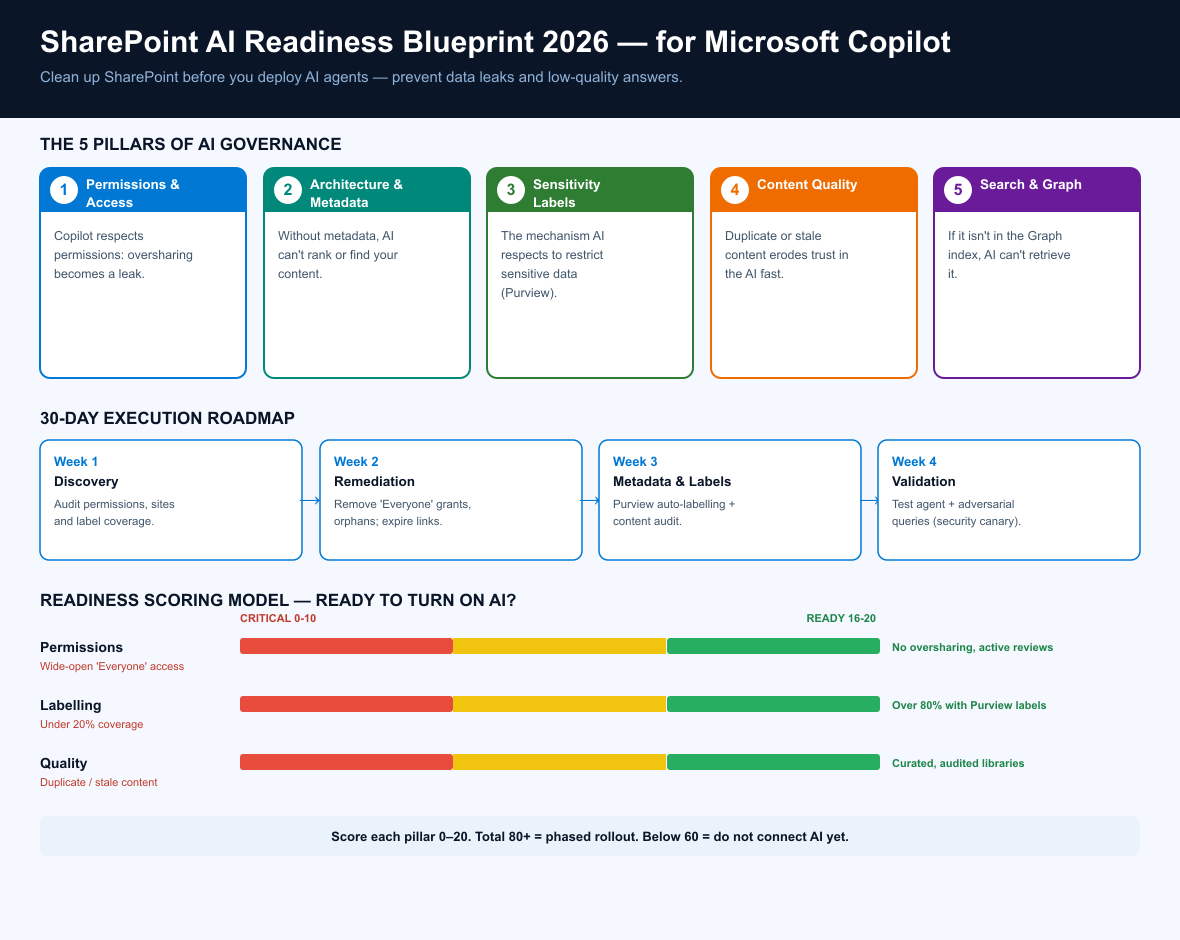
The 5 Pillars of SharePoint AI Readiness
Based on enterprise deployments across EMEA, the readiness gaps that most commonly derail AI projects fall into five categories. Address all five before you enable any AI agent, and you dramatically reduce the risk of privacy incidents, hallucinations caused by outdated content, and productivity loss from irrelevant AI responses.

Pillar 1 — Access Governance and Permissions Hygiene
This is the single most critical pillar. Microsoft 365 Copilot respects Microsoft 365 permissions at the object level: if a user has access to a file, Copilot can surface that file's content in the user's responses. This means every overly permissive access grant in your SharePoint environment is now an AI data leakage vector.
Start with a permissions audit. The most common issues you will find are:
- Overly broad site-level permissions — entire sites shared with "Everyone except external users" or large security groups that include people who have no legitimate need for that content
- Orphaned access — sharing links and direct grants that persist long after the project, employee, or contract ended
- Broken inheritance — unique permissions applied at the item level over years of ad-hoc sharing, making it impossible to audit the effective permissions on any given document
- Overshared OneDrive content — personal OneDrive files that were shared organisation-wide and never reviewed
The SharePoint governance overview on Microsoft Learn provides the framework for establishing a permissions governance model. In practice, this means implementing a regular access review cycle (quarterly at minimum), enabling access expiry on sharing links, and restricting site creation to approved teams so you stop accumulating new ungoverned sites.
For environments with strict separation requirements between business units — legal, HR, finance, M&A — consider Information Barriers in SharePoint, which allow you to define policies that prevent certain groups from accessing content created by other groups, even if standard permissions would otherwise allow it.
How to actually run the permissions audit (PnP PowerShell)
Most guides tell you to "audit your permissions." Here is the command that actually does it. Run it against your tenant admin endpoint and you get a CSV of every site, its external-sharing posture, and its owner — the raw material for your remediation backlog:
Connect-PnPOnline -Url "https://<tenant>-admin.sharepoint.com" -Interactive

Get-PnPTenantSite -Detailed |
  Select-Object Url, SharingCapability, Owner, LastContentModifiedDate |
  Where-Object { $_.SharingCapability -ne "Disabled" } |
  Export-Csv .\sharing-audit.csv -NoTypeInformation
At scale, the faster route is the Data Access Governance (DAG) report in the SharePoint admin centre (Reports → Data access governance), which lists every site shared with "Everyone except external users" in one view.
What Microsoft won't put in bold: the DAG reports and Restricted SharePoint Search that Microsoft recommends for Copilot readiness live behind SharePoint Advanced Management (SAM) — a paid add-on. It ships bundled with a Microsoft 365 Copilot licence, but if you are assessing readiness before buying Copilot seats, the exact tooling the official guidance points you to is not free yet. Budget for SAM, or run the first pass with the PnP PowerShell above.
Pillar 2 — Information Architecture and Metadata
AI agents do not browse your SharePoint the way a human does. They query it semantically, retrieving chunks of content that are ranked by relevance to the user's request. The quality of that retrieval depends heavily on the structure and metadata of your content.
A document titled "Meeting Notes 14-03" in a library called "General" on a site called "Team Site 47" gives an AI agent almost no context about what the document is, who it is for, or how current it is. A document titled "Q1 2026 Product Roadmap Review — Engineering" in a library called "Product Strategy" on a site called "Engineering — Strategy and Planning", tagged with content type "Strategic Document", department "Engineering", and document status "Approved" — that document the AI can understand, rank correctly, and surface with confidence.
Building a sound information architecture for the modern SharePoint experience is not a one-week project for large enterprises, but you do not need to boil the ocean. Focus on the sites and libraries that will be explicitly connected to AI agents first, and use those as the template for the broader governance rollout.
Key metadata fields to standardise across all AI-connected content:
- Department — which business unit owns this content
- Document status — Draft, Under Review, Approved, Archived
- Content type — Policy, Procedure, Reference, Report, Project Document
- Review date — when this content was last verified as accurate
- Audience — Internal, Restricted, Confidential
Pillar 3 — Sensitivity Labels and Compliance Classification
Sensitivity labels are the mechanism that tells the entire Microsoft 365 stack — including AI agents — how a document should be handled. A document labelled "Highly Confidential — Legal" carries access restrictions and encryption policies that Copilot will respect. A document with no label carries no such protection.
According to Microsoft's documentation on sensitivity labels in Microsoft 365, auto-labelling policies can be deployed at scale to classify documents based on content patterns — credit card numbers, personal data, legal clauses — without requiring manual classification by document owners. For most enterprises, the goal before AI deployment should be to reach at least 80% labelling coverage across all SharePoint libraries that will be indexed by AI agents.
The classification taxonomy to implement before an AI deployment should include, at minimum:
- Public — content that can be shared openly
- Internal — content for employees only, no AI restrictions
- Confidential — content that should only surface to users with explicit access
- Highly Confidential — content that requires additional justification before surfacing via AI (consider excluding from AI indexing entirely)
Microsoft Purview is the governance platform that manages sensitivity labels, retention policies, and compliance posture across your M365 tenant. If you do not have Purview configured and actively managed before your AI deployment, you are building on sand.
Pillar 4 — Content Quality and Document Standards
AI retrieval is only as good as the content it retrieves. Enterprise SharePoint environments contain an enormous volume of low-quality content: duplicate documents, outdated procedures, draft versions that were never superseded, marketing copy from five years ago, and project files for initiatives that never launched. When an AI agent retrieves this content and presents it as relevant, it erodes user trust faster than almost any other failure mode.
Before enabling AI indexing on any SharePoint site or library, conduct a content audit against these criteria:
- Currency — is this content still accurate? Flag anything last modified more than 18 months ago for review.
- Duplication — are there multiple versions of the same document? Establish a single authoritative version and archive the rest.
- Completeness — are there document stubs, empty templates, or placeholder files that should not be in a knowledge library?
- Relevance — does this content belong in a knowledge library for AI, or is it operational/transactional content that should be excluded?
Consider creating dedicated "AI-ready" document libraries within your SharePoint sites — curated subsets of content that have been reviewed for quality, sensitivity, and accuracy — and connecting AI agents to these libraries specifically, rather than to the full site. This is the fastest path to a high-quality AI knowledge base without requiring a complete overhaul of your SharePoint estate.
Pillar 5 — Search Configuration and Microsoft Graph Readiness
Microsoft 365 Copilot and Microsoft Search both use the Microsoft Graph as the index layer. The Graph ingests content from SharePoint, applies semantic processing, and makes it available for retrieval by AI agents. If your content is not properly indexed in the Graph, it will not be surfaced by AI — regardless of how well it is organised.
The Microsoft Search overview explains how search schemas, crawled properties, and managed properties influence what content the AI can retrieve and how it ranks results. Key configuration tasks in this pillar include:
- Verifying that all relevant SharePoint sites are included in the Microsoft Search index (not marked as no-index)
- Mapping custom metadata fields to managed properties so they are searchable by AI
- Configuring search verticals and result types for your most important content categories
- Reviewing and removing any crawl exclusions that might be preventing AI from accessing current content
For Copilot Studio agents that use SharePoint as a knowledge source, the knowledge configuration documentation for Copilot Studio provides specific guidance on how to connect SharePoint sites and libraries, configure chunking behaviour, and test retrieval quality before publishing the agent.
The 30-Day SharePoint AI Readiness Blueprint
This timeline is designed for a medium-sized enterprise (500–2,000 users) with a single M365 tenant and a SharePoint estate of 100–500 active sites. Larger organisations should extend the timeline proportionally, focusing the first sprint on the sites explicitly targeted for AI agent connections.
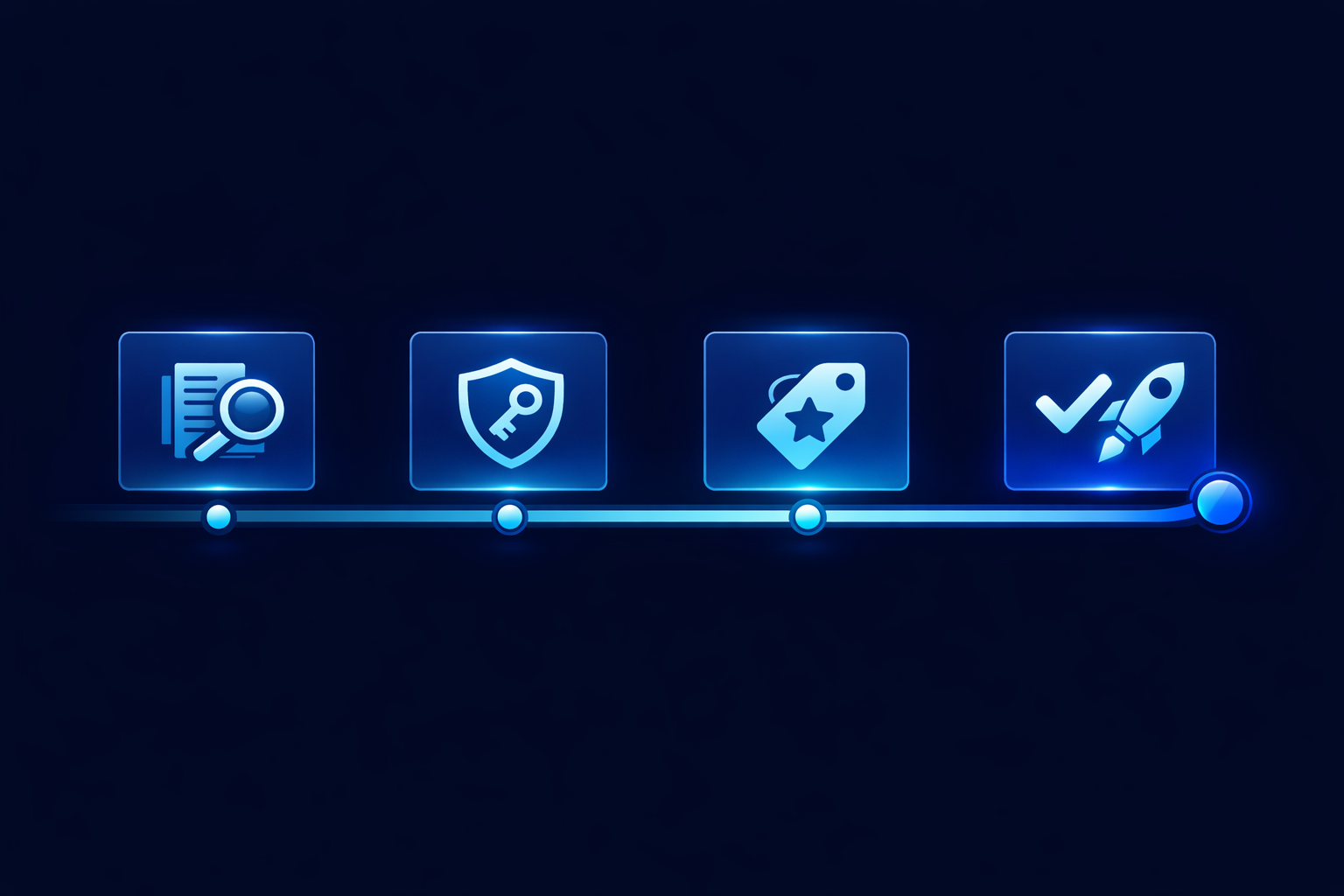
Week 1: Discovery and Assessment
- Run a full permissions report using the SharePoint admin centre or Microsoft 365 Assessment tool. Identify all sites with "Everyone" or "Everyone except external users" access grants.
- Inventory all SharePoint sites: active vs abandoned, owner confirmed vs no owner, sensitive content vs general collaboration.
- Pull a sensitivity label coverage report from Microsoft Purview. Identify the percentage of documents with no label.
- Identify the 10–20 sites that will be the first knowledge sources for AI agents. These become your sprint 1 focus.
Week 2: Permissions and Access Remediation
- Remove all "Everyone" and broad group access grants from sites containing any confidential, HR, legal, or financial content.
- Enable access expiry on all new sharing links (90-day default recommended).
- Assign explicit site owners to all sites currently without an identified owner.
- Archive or delete any sites that have had no activity in 12+ months and whose owners have confirmed they are no longer needed.
Week 3: Metadata, Labels, and Content Quality
- Deploy auto-labelling policies in Microsoft Purview for sensitive content types (PII, financial data, legal documents).
- Manually review and label all documents in the 10–20 priority sites identified in Week 1.
- Establish content type templates and mandatory metadata columns in each priority library.
- Conduct a content audit on priority sites: archive outdated documents, deduplicate, remove stubs and drafts that should not be AI-indexed.
Week 4: Search Configuration and AI Readiness Validation
- Verify Microsoft Search indexing coverage for priority sites. Test retrieval for representative queries using the Search & Intelligence admin panel.
- Configure managed properties for custom metadata fields in priority libraries.
- Build a test Copilot Studio agent connected to your priority SharePoint knowledge sources. Run 20–30 representative queries against it and review the responses for accuracy, relevance, and any inappropriate disclosure.
- Fix any issues identified in the test phase before proceeding to production rollout.
How to Score Your AI Readiness
Use this scoring model before any AI agent goes live. Each pillar is scored 0–20 points. A total score of 80+ means you are ready to proceed with a phased rollout. A score below 60 means stop — do not connect AI agents to this environment until the gaps are addressed.
| Pillar | Score 0–5 | Score 6–10 | Score 11–15 | Score 16–20 |
|---|---|---|---|---|
| Permissions | No access reviews, widespread broad grants | Some remediation underway, no access expiry | Access expiry enabled, owners assigned, major oversharing removed | Full access review cycle, no broad grants, IB policies where needed |
| Architecture | No metadata standards, inconsistent naming | Some naming conventions, partial metadata | Content types defined, metadata on priority sites | Full taxonomy, consistent across all AI-connected libraries |
| Sensitivity Labels | Less than 20% coverage | 20–50% coverage, manual only | 50–80% coverage with some auto-labelling | 80%+ coverage, auto-labelling deployed, Highly Confidential excluded from AI |
| Content Quality | No audit, significant stale/duplicate content | Partial audit on some sites | Priority sites audited, outdated content archived | All AI-connected libraries audited, regular review cycle in place |
| Search / Graph | Default configuration only | Basic Search schema, no custom properties | Managed properties mapped, Search verified | Full schema optimised, test agent validated, retrieval quality confirmed |
The 5 Mistakes That Derail AI Projects Before They Start
Beyond the five pillars, these specific mistakes consistently appear in failed enterprise AI deployments:
- Treating AI readiness as an IT task, not a business task. Permissions and data governance decisions require business owners, not just IT admins. Without explicit business sign-off on what content AI agents should and should not access, you are making governance decisions by default.
- Assuming "Copilot uses permissions, so we are safe." Copilot does respect permissions — but it also surfaces everything a user has access to, including content they were not supposed to have access to in the first place. Overly permissive SharePoint is a problem regardless of AI. AI just makes it visible and expensive faster.
- Connecting AI to the full SharePoint estate rather than curated subsets. Start narrow. Build "AI-ready" curated libraries with high-quality, well-labelled content. Expand the AI footprint as governance catches up.
- Skipping the test agent phase. Before any Copilot licence goes live, build a non-production Copilot Studio agent, connect it to your SharePoint knowledge sources, and run adversarial test queries specifically designed to surface data that should not be visible. This is your security canary.
- No retention policy before AI indexing. Documents that are legally required to be deleted must be deleted before AI indexes them. If a GDPR retention schedule says certain personal data must be purged after two years, and that data still exists in SharePoint, an AI agent can retrieve and surface it. Review retention policies as part of Week 3.
For a deeper look at how retrieval-augmented generation works in Azure AI Foundry and how document quality affects response accuracy, the Microsoft Learn documentation is an essential reference alongside this blueprint.
SharePoint AI Readiness: The Strategic Investment That Pays for Itself
Every hour invested in SharePoint AI readiness before deployment saves days of incident response after deployment. The permission hygiene, metadata standards, sensitivity labels, content audits, and search configuration described in this blueprint are not overhead — they are the foundation that determines whether your AI investment generates strategic value or creates regulatory exposure.
The enterprises that get the most from Microsoft 365 Copilot, Copilot Studio, and Azure AI Foundry are not necessarily the ones with the most sophisticated AI configurations. They are the ones with the cleanest, best-governed data environments underneath. Data readiness is the competitive advantage that most AI programmes overlook until it is too late.
Start with the five pillars. Use the 30-day blueprint. Score your readiness honestly. And only enable AI agents on SharePoint environments you would be comfortable having read aloud in a board meeting.
Free Download
📋 SharePoint AI Readiness Audit Checklist
60-point audit across 5 governance pillars — Permissions, Metadata, Sensitivity Labels, Content Quality, and Microsoft Graph. Includes scoring template and remediation priority matrix.
⬇️ Download Free Checklist (PDF)No email required · PDF · ~60 items · 5 pillars
Frequently asked questions
How long does SharePoint AI readiness actually take?
The blueprint above is scoped to 30 days for the assessment and the first wave of remediation. What runs longer is the remediation backlog it produces: oversharing and unlabelled content take as long as the owners of that content need to make decisions. Start the assessment before the licences land, not after.
Can we deploy Copilot first and fix SharePoint afterwards?
You can, and it is the most expensive order. Copilot respects existing permissions, so anything overshared surfaces on day one, politely and usefully, to the people who should never have seen it. Fixing it under incident pressure costs more than the assessment would have. The tenant-level view of that risk is in the Purview DSPM for AI rollout guide.
Which of the five pillars matters most if we are short on time?
Permissions. Metadata and content quality change how good the answers are; permissions change whether the answers are a security incident. Term store and metadata work is the next lever, covered in making SharePoint Online AI-ready.
Do we need this if our agents only use a few curated sites?
Less of it, and that is a legitimate phased strategy — narrow the scope, govern that scope properly, expand as you remediate. What does not work is treating a narrow scope as permanent: the request to widen it always arrives, and it arrives with a deadline. The governance guardrails to have in place before that happens are in the agent governance checklist.