Microsoft 365 Governance Framework: Step-by-Step Guide 2026
· Governance · 15 min read
By Juan Pedro Márquez
The Governance Imperative in the AI Era
The introduction of AI-powered tools like Microsoft 365 Copilot has fundamentally changed the governance equation for enterprise IT. Traditional governance models — designed for a world where data access was mediated by application UIs and manual processes — are insufficient when an AI assistant can instantly search, synthesize, and surface content from across your entire Microsoft 365 tenant.
In my work helping organizations prepare for AI adoption, I have found that governance readiness is the single best predictor of successful Copilot deployment. Organizations with mature governance frameworks deploy Copilot confidently and see rapid ROI. Those without governance foundations face weeks or months of remediation before they can responsibly enable AI features.
This guide provides a practical framework for building — or upgrading — your Microsoft 365 governance model to be AI-ready. It covers the governance pillars, implementation strategies, and a concrete 90-day roadmap you can adapt to your organization.
Microsoft 365 Governance Pillars
Effective governance in Microsoft 365 rests on four interconnected pillars. Weakness in any one area creates risk across the entire platform.
Identity Governance
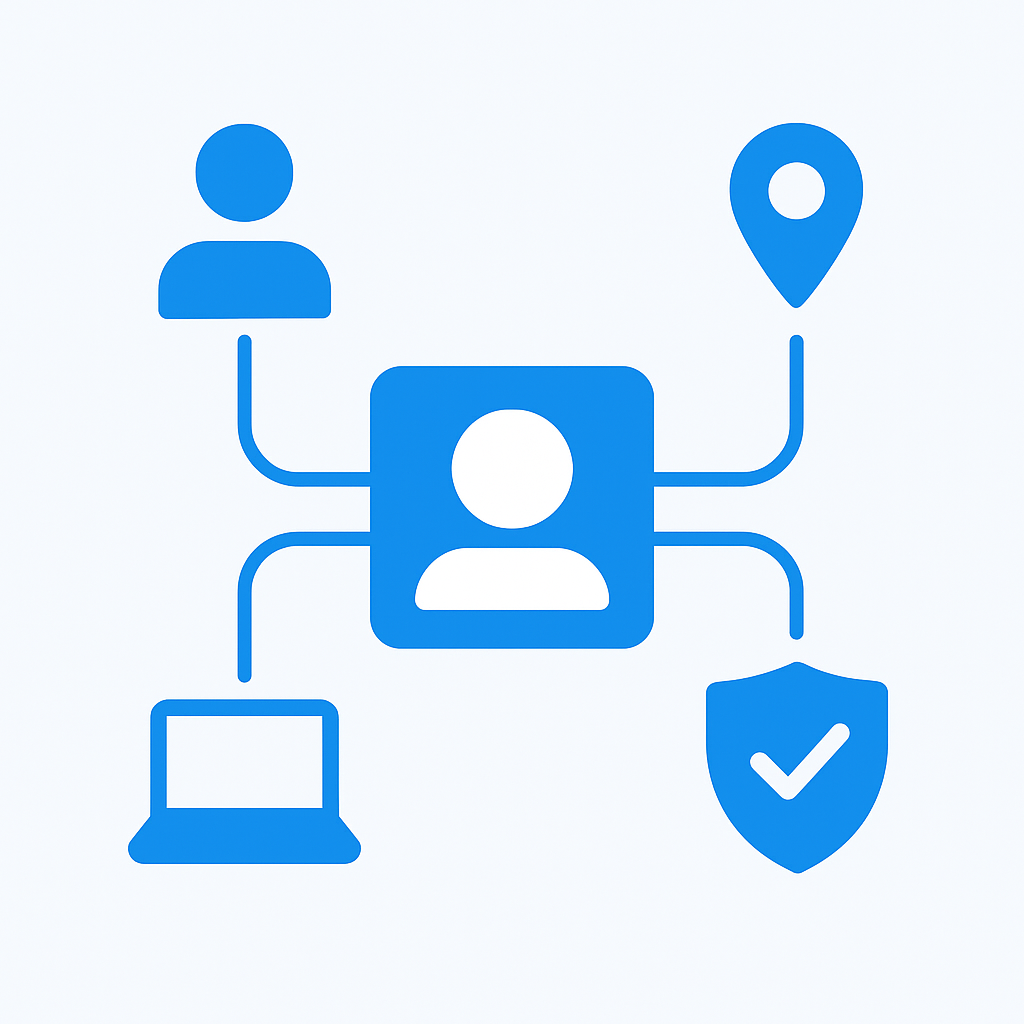
Identity is the new perimeter. Every access decision in Microsoft 365 begins with identity verification and authorization.
Key components:
- Entra ID (Azure Active Directory): Central identity provider for all Microsoft 365 services
- Conditional Access: Context-aware access policies based on user, device, location, and risk level
- Privileged Identity Management (PIM): Just-in-time, time-limited privileged access with approval workflows
- Access Reviews: Periodic certification of group memberships and application access
- Entitlement Management: Access packages that bundle resources with approval, expiration, and review policies
AI readiness impact: Copilot accesses data through the user's identity. Stale group memberships, overprivileged accounts, and unused guest accounts all expand the data surface that Copilot can reach. Regular access reviews and PIM for administrative roles are essential.
For identity governance implementation, see What is Entra ID Governance.
Data Governance
Data governance ensures that information is classified, protected, and managed throughout its lifecycle.
Key components:
- Sensitivity labels: Classification and protection (encryption, watermarking, access restrictions)
- Data Loss Prevention (DLP): Policies that detect and prevent unauthorized sharing of sensitive data
- Retention policies: Automated content lifecycle management
- Records management: Regulatory records with immutable retention and disposition workflows
- Data lifecycle management: Policies for content expiration and cleanup
AI readiness impact: Without data classification, Copilot treats all content equally. Sensitivity labels ensure that confidential information receives appropriate protection, and DLP policies prevent Copilot-assisted content from being shared inappropriately.
Access Governance
Access governance controls who can access what resources and under what conditions.
Key components:
- SharePoint permissions model: Site-level, library-level, and item-level access controls
- Microsoft 365 Groups: Unified membership management for Teams, SharePoint, and Outlook
- Sharing policies: Controls for internal and external content sharing
- Restricted SharePoint Search: Limit which sites Copilot can access during phased rollouts
AI readiness impact: Oversharing is the number one governance risk for Copilot. A site shared with "Everyone except external users" means every employee's Copilot can access that content. Rigorous access governance is non-negotiable.
Compliance Governance
Compliance governance ensures your Microsoft 365 environment meets regulatory and organizational policy requirements.
Key components:
- Microsoft Purview Compliance Manager: Assessment and improvement of compliance posture
- Audit logging: Comprehensive activity tracking across all Microsoft 365 services
- eDiscovery: Legal hold and investigation capabilities
- Communication compliance: Policy-based monitoring of communications
- Insider risk management: Detection of potential data theft and policy violations
Data Classification and Sensitivity Labels Strategy
Sensitivity labels are the cornerstone of AI-ready governance. They provide both classification metadata and active protection.
Designing Your Label Taxonomy
Start simple and iterate. A common enterprise taxonomy:
Level 1 — Public
- No protection applied
- Content intended for public distribution
- Example: Marketing materials, published research
Level 2 — General (Internal)
- Header/footer marking only
- Standard business content not intended for public distribution
- Example: Internal presentations, meeting notes, project documents
Level 3 — Confidential
- Encryption with organization-wide access
- Restricted external sharing
- Example: Financial reports, strategic plans, customer data
Level 4 — Highly Confidential
- Encryption with named-user access only
- No forwarding, no printing, watermarked
- Example: M&A documents, board materials, trade secrets
Sub-Labels for Granularity
Within each level, sub-labels provide additional specificity:
Confidential
├── Confidential - All Employees (encrypt, org-wide access)
├── Confidential - Finance (encrypt, finance group only)
├── Confidential - HR (encrypt, HR group only)
└── Confidential - Legal (encrypt, legal group only)
Auto-Labeling Strategy
Manual labeling depends on user behavior and inevitably has gaps. Complement it with auto-labeling:
- Client-side recommendations: Office apps suggest labels based on content analysis. Users see a recommendation bar and can accept or override.
- Service-side auto-labeling: Policies that scan content at rest in SharePoint, OneDrive, and Exchange, applying labels without user intervention.
- Trainable classifiers: Machine learning models trained on your organization's content to identify specific document types (contracts, resumes, financial statements).
- Exact data matching: Match content against known sensitive data (employee IDs, customer account numbers) for precise classification.
For sensitivity label strategy, see Plan your sensitivity labels.
Microsoft Purview Integration
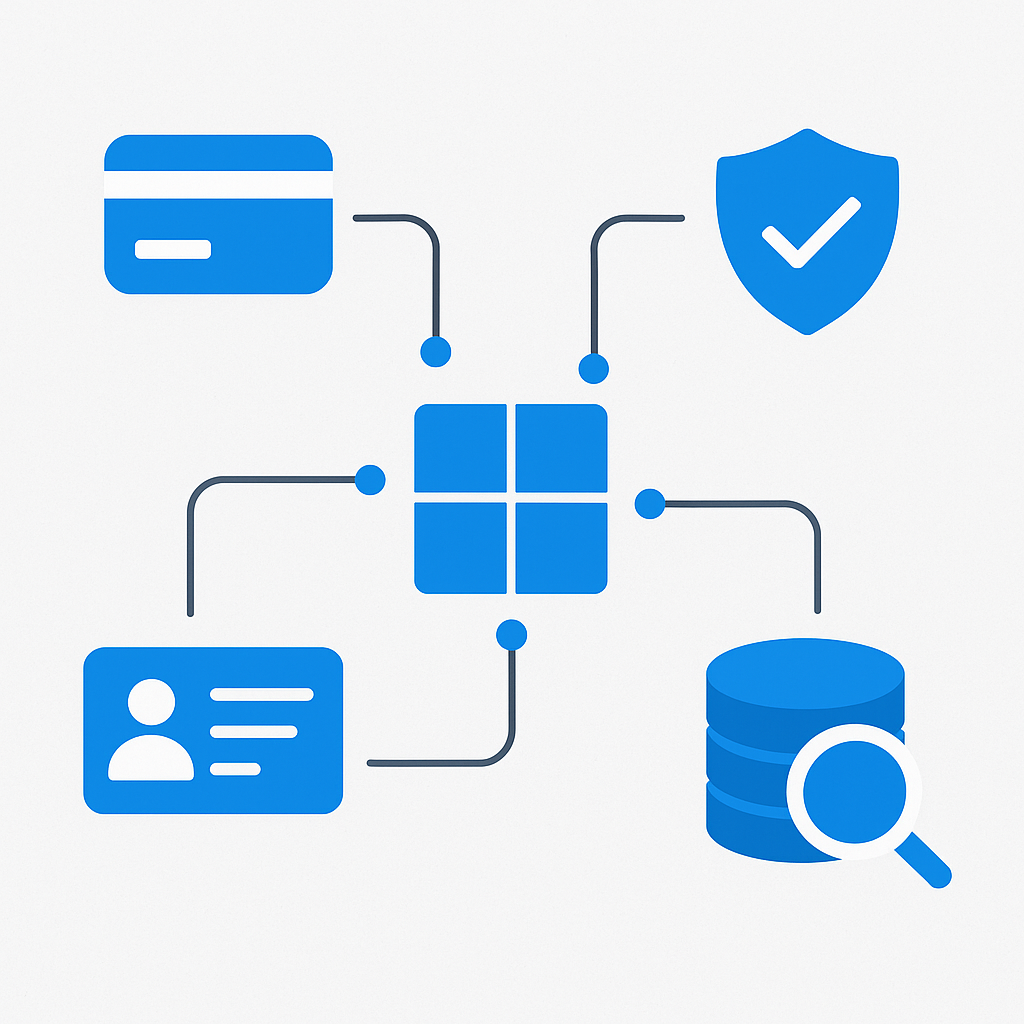
Microsoft Purview provides the unified platform for information protection, data governance, and compliance management.
Information Protection
Beyond sensitivity labels, Purview Information Protection includes:
- Sensitive information types (SITs): Pre-built and custom patterns for detecting sensitive data (credit card numbers, passport numbers, custom patterns like employee IDs)
- Exact data matching: Upload a table of sensitive data and create SITs that match exact values
- Named entities: AI-powered detection of people's names, physical addresses, and medical terms
- Fingerprinting: Create SITs based on document templates (standard forms, contracts)
Data Loss Prevention
DLP policies act as guardrails, preventing sensitive content from leaving your controlled environment:
Policy design recommendations:
- Start with audit-only mode to understand current data flows
- Target high-risk locations first: Exchange email, Teams chat, SharePoint/OneDrive sharing
- Use policy tips to educate users before enforcing blocks
- Create escalation paths for legitimate business exceptions
- Review DLP reports weekly during initial deployment, monthly once stable
Example policy: Block external sharing of any document labeled "Confidential" or higher, with a policy tip explaining the restriction and a link to request an exception.
Insider Risk Management
Insider Risk Management uses signals from across Microsoft 365 to detect potential data exfiltration, policy violations, and security incidents:
- Data theft by departing employees: Monitors for unusual download or sharing activity by users who have submitted resignation
- Data leaks: Detects accidental or intentional sharing of sensitive information
- Security policy violations: Identifies access to restricted sites or installation of unauthorized software
For Purview deployment, see Microsoft Purview documentation.
Identity Governance with Entra ID
Conditional Access Architecture
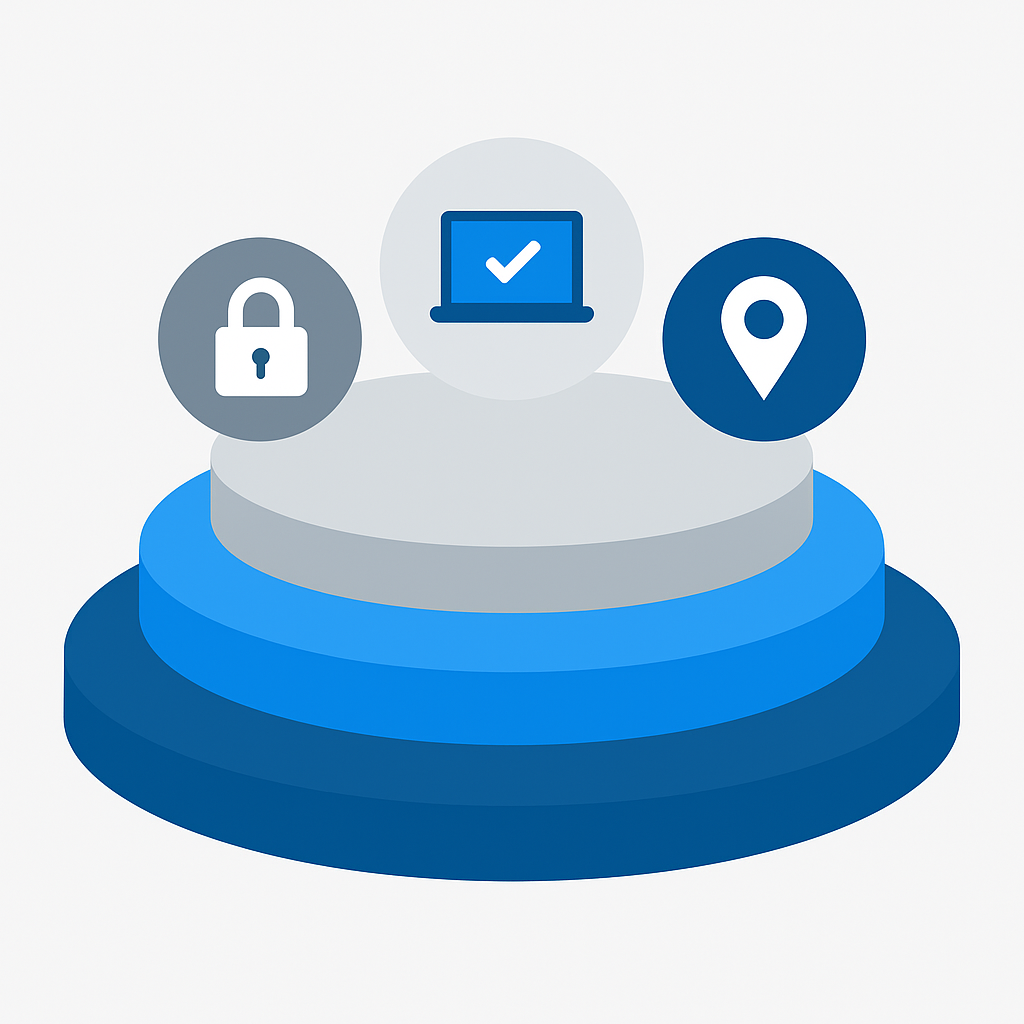
Design Conditional Access policies in layers:
Foundation policies (all users):
- Require MFA for all cloud apps
- Block legacy authentication protocols
- Require compliant or hybrid joined devices for desktop access
Enhanced policies (sensitive roles):
- Require phishing-resistant MFA (FIDO2, Windows Hello) for admins
- Block access from untrusted locations for privileged accounts
- Require compliant devices for accessing sensitive applications
Contextual policies (specific scenarios):
- Require terms of use acceptance for guest users
- Block downloads from unmanaged devices for specific apps
- Require re-authentication for high-risk sign-ins
Privileged Identity Management (PIM)
PIM eliminates standing privileged access:
- Just-in-time activation: Admins request role activation for a limited time (1-8 hours)
- Approval workflows: Sensitive roles require manager or security team approval
- MFA at activation: Additional authentication required when activating roles
- Audit trail: Complete logging of who activated what role, when, and why
Roles to protect with PIM:
- Global Administrator
- SharePoint Administrator
- Exchange Administrator
- Compliance Administrator
- Security Administrator
- User Administrator
Access Reviews
Automate periodic access certification:
- Group membership reviews: Quarterly review of Microsoft 365 Group membership by group owners
- Application access reviews: Semi-annual review of application access by resource owners
- Guest user reviews: Monthly review of external user access
- Privileged role reviews: Quarterly review of PIM role assignments
For Conditional Access planning, see Plan a Conditional Access deployment.
Teams and Groups Governance
Microsoft 365 Groups underpin Teams, SharePoint, and shared mailboxes. Governing Groups effectively is essential.
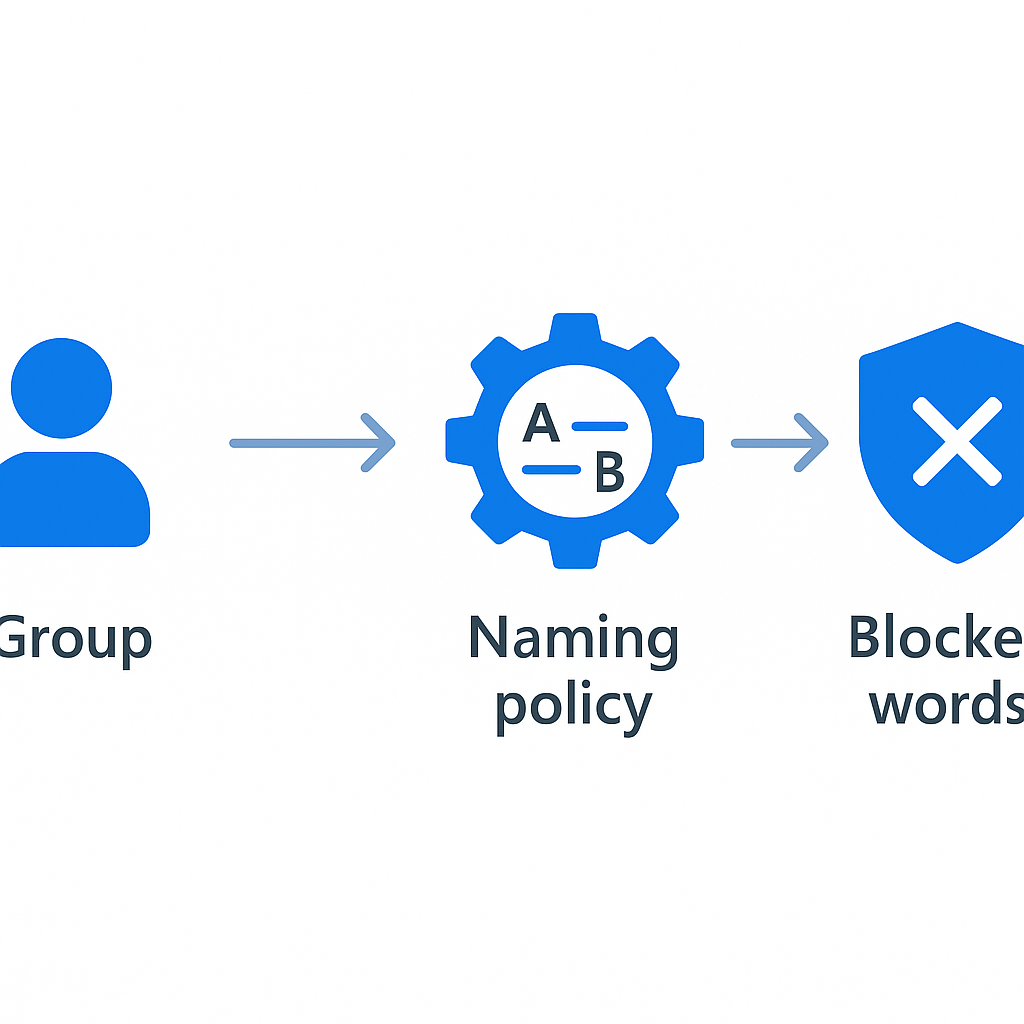
Naming Policies
Enforce consistent naming through Entra ID naming policies:
Prefix-suffix policy:
"GRP-{Department}-{GroupName}"

Examples:
GRP-Finance-BudgetPlanning
GRP-Engineering-ProjectAlpha
GRP-HR-Recruitment2024
Blocked words list: Prevent groups with names containing restricted terms (CEO, Payroll, Confidential) unless created by authorized users.
Expiration Policies
Set group expiration to prevent orphaned groups:
- Recommended setting: 365 days for project groups, no expiration for permanent department groups
- Notification: Owners receive renewal reminders at 30, 15, and 1 day before expiration
- Auto-renewal: Groups with active usage (Teams messages, SharePoint activity, Outlook emails) can auto-renew
- Recovery: Deleted groups can be recovered within 30 days
Guest Access Controls
Manage external collaboration through Entra ID settings:
- Who can invite guests: Restrict to specific roles (Guest Inviter role)
- Which domains: Allow or block specific external domains
- What can guests access: Limit guest permissions in Teams and SharePoint
- How long: Set guest access expiration and review requirements
For Groups governance, see Plan for governance in Teams.
Preparing Your Data Estate for Copilot
This section addresses the specific governance actions needed before enabling Microsoft 365 Copilot.
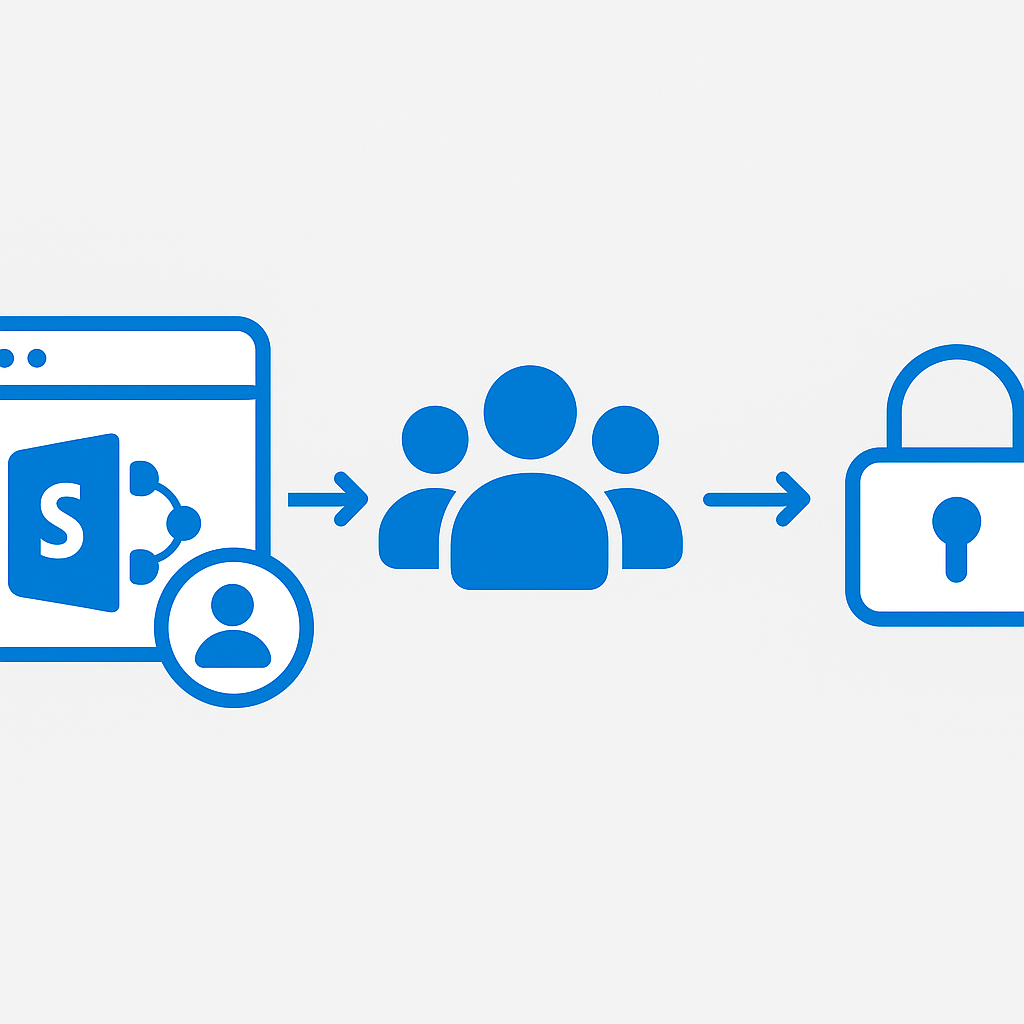
The Oversharing Problem
Copilot surfaces content that users have access to. In most organizations, users have access to far more content than they realize:
- SharePoint sites shared with "Everyone except external users": Every employee can see this content through Copilot
- Stale group memberships: Users who changed roles still have access to their previous team's content
- Permissive sharing defaults: Default sharing links set to "Organization" rather than "Specific people"
- Inherited permissions: Subsites and folders inheriting broad permissions from parent sites
Permission Audit Process
- Use SharePoint Advanced Management data access governance reports to identify overshared sites
- Run Microsoft Graph queries to catalog sites with broad permissions:
GET https://graph.microsoft.com/v1.0/sites?$filter=sharingCapability eq 'ExternalUserSharingOnly'- Generate access review campaigns for all Microsoft 365 Groups
- Identify sensitive sites and apply Restricted Access Control policies
- Review sharing links — identify and remove stale "Anyone" links
Restricted SharePoint Search (RSS)
RSS is a powerful tool for phased Copilot deployment:
- Define an allow list of sites that Copilot can index and search
- Start with well-governed sites only
- Expand the allow list as you complete governance remediation on additional sites
- Users retain normal access to all sites — RSS only affects Copilot's behavior
Content Cleanup
Before enabling Copilot, clean up your content estate:
- Remove or archive stale content: Outdated policies, deprecated procedures, old project files
- Deduplicate: Multiple versions of the same document confuse Copilot
- Fix metadata: Ensure content types and metadata are consistent
- Review sensitivity labels: Verify that sensitive content is properly labeled and encrypted
Compliance Framework Alignment
Map your Microsoft 365 governance to industry compliance frameworks.
GDPR Compliance
- Data subject rights: Use Content Search and eDiscovery for DSR requests
- Data processing records: Document Microsoft 365 data processing activities
- Breach notification: Configure alert policies for potential data breaches
- Cross-border transfers: Verify data residency and processing locations
- Consent management: Implement consent tracking for marketing communications
ISO 27001
Map Microsoft 365 controls to ISO 27001 Annex A:
- A.5 Information security policies: Governance policies documented in SharePoint
- A.6 Organization of information security: PIM, RBAC, separation of duties
- A.8 Asset management: Sensitivity labels, data classification
- A.9 Access control: Conditional Access, access reviews
- A.12 Operations security: Audit logging, DLP monitoring
- A.14 System acquisition: Change management through solutions and pipelines
Compliance Manager
Use Compliance Manager to:
- Assess your current compliance posture across 300+ frameworks
- Identify improvement actions with priority rankings
- Track progress with a compliance score (0-100%)
- Generate compliance reports for auditors and leadership
For Compliance Manager, see Microsoft Purview Compliance Manager.
Automation Through Microsoft Graph and PowerShell
Scale your governance through automation.
Microsoft Graph Governance APIs
# Create an access review for a specific group
$reviewParams = @{
    displayName = "Quarterly Finance Team Review"
    scope = @{
        query = "/groups/{group-id}/members"
        queryType = "MicrosoftGraph"
    }
    reviewers = @(
        @{ query = "/groups/{group-id}/owners"; queryType = "MicrosoftGraph" }
    )
    settings = @{
        recurrence = @{
            pattern = @{ type = "absoluteMonthly"; interval = 3 }
            range = @{ type = "noEnd" }
        }
        autoApplyDecisions = $true
        removeAccessWhenTargetObjectIsDeleted = $true
    }
}
New-MgIdentityGovernanceAccessReviewDefinition -BodyParameter $reviewParams
Governance Automation Playbook
Daily:
- Monitor DLP policy matches and alert on high-severity incidents
- Check for new "Everyone" sharing links on sensitive sites
- Verify PIM role activation logs for anomalies
Weekly:
- Review new Microsoft 365 Group creation and verify naming compliance
- Check guest user activity and flag inactive guests
- Audit Conditional Access policy changes
Monthly:
- Generate compliance score report
- Review sensitivity label adoption metrics
- Analyze storage consumption trends
- Update governance dashboard for leadership
Quarterly:
- Conduct access reviews for all critical groups
- Review and update DLP policies based on incident trends
- Assess compliance framework alignment
- Update governance policies and documentation
For Graph API governance capabilities, see Identity governance API overview.
Building a Governance Operating Model
RACI Matrix
Define clear accountability for governance activities:
| Activity | IT Security | Compliance | Business Owners | IT Admin |
|----------|-------------|------------|----------------|----------|
| Label taxonomy design | C | A | C | R |
| DLP policy creation | A | C | I | R |
| Access reviews | I | C | A | R |
| Incident response | A | C | I | R |
| Policy documentation | C | A | C | R |
| Training delivery | I | C | A | R |
R = Responsible, A = Accountable, C = Consulted, I = Informed
Governance Board
Establish a governance board that meets monthly:
Members:
- CISO or IT Security Director (chair)
- Chief Compliance Officer
- IT Director or CTO
- Business unit representatives (rotating)
- Legal counsel (as needed)
Agenda items:
- Compliance score review and trends
- DLP incident summary and remediation status
- Access review completion rates
- New governance policy proposals
- Copilot adoption and governance metrics
- Exception requests and decisions
Policy Framework
Create a tiered policy structure:
- Governance charter: High-level principles and accountability (annual review)
- Domain policies: Detailed policies for each governance pillar (semi-annual review)
- Standard operating procedures: Step-by-step implementation guides (quarterly review)
- Technical configurations: Documented settings and automation (continuous)
Monitoring and Continuous Improvement
Microsoft Secure Score
Track your security posture improvement:
- Review recommended actions weekly
- Prioritize high-impact, low-effort improvements
- Set quarterly targets for score improvement
- Compare against industry benchmarks
Microsoft Compliance Score
Monitor compliance posture across frameworks:
- Track improvement actions and their completion status
- Generate framework-specific compliance reports
- Identify gaps that require policy changes or technical controls
Custom Governance Dashboard
Build a Power BI dashboard that aggregates:
- Secure Score and Compliance Score trends
- DLP policy match counts and severities
- Access review completion rates
- Sensitivity label adoption rates
- Guest user counts and activity
- Group creation and expiration trends
- Copilot adoption metrics alongside governance metrics
30-60-90 Day Implementation Roadmap
Days 1-30: Foundation
Week 1-2:
- Inventory current governance state: existing policies, tools, processes
- Identify stakeholders and establish governance board
- Conduct initial permissions audit using SharePoint Admin Center
- Document current sensitivity label deployment (if any)
Week 3-4:
- Design or refine sensitivity label taxonomy
- Create Conditional Access baseline policies
- Deploy SharePoint Advanced Management (if not already active)
- Configure PIM for all administrative roles
- Begin DLP policy design in audit-only mode
Days 31-60: Implementation
Week 5-6:
- Deploy sensitivity labels with auto-labeling policies
- Remediate top 20 overshared SharePoint sites
- Configure group expiration and naming policies
- Launch first access review campaign
Week 7-8:
- Enable DLP policies in enforcement mode (graduated)
- Implement Restricted SharePoint Search for Copilot (if applicable)
- Deploy governance automation scripts
- Begin user training on sensitivity labels and sharing practices
Days 61-90: Optimization
Week 9-10:
- Review first month of DLP enforcement data and tune policies
- Complete first cycle of access reviews
- Deploy governance Power BI dashboard
- Document all governance policies and SOPs
Week 11-12:
- Present governance posture report to leadership
- Refine automation based on first quarter learnings
- Plan next quarter's governance improvements
- Establish ongoing monthly governance cadence
This roadmap is a starting point. Adapt the timeline and priorities to your organization's size, industry, and current governance maturity. The critical insight is that governance is not a project — it is an operational capability that must continuously evolve as your Microsoft 365 environment and the threats it faces evolve alongside it.
For comprehensive governance guidance, visit the Microsoft 365 governance documentation and the Microsoft Purview documentation hub.
📋 Free Download: The Microsoft AI Governance Playbook
Everything covered in this article — the 3-layer framework, the decision matrix, the 20-question readiness assessment, and the 5 failure modes I see every month in EMEA — is packaged in a single PDF for IT Directors and CIOs.
_(Get the free PDF by entering your email in the form below.)_
Ready to map your specific governance roadmap? Let's talk →