Microsoft 365 Copilot: Step-by-Step Deployment Guide
· AI & Copilot · 13 min read
By Juan Pedro Márquez
Understanding Microsoft 365 Copilot
Microsoft 365 Copilot represents a fundamental shift in how knowledge workers interact with their productivity tools. Built on top of large language models (LLMs), the Microsoft Graph, and your organization's data, Copilot acts as an intelligent assistant embedded directly into the applications your teams use every day — Word, Excel, PowerPoint, Outlook, Teams, and more.

Having helped dozens of enterprise customers plan and deploy Copilot across their organizations, I can tell you that the technology itself is impressive, but the real challenge lies in preparation. Organizations that invest in readiness — data governance, permissions hygiene, and change management — see dramatically better outcomes than those who simply flip the switch.
In this guide, I will walk you through everything you need to know to successfully deploy Microsoft 365 Copilot, from architecture fundamentals to measuring ROI.
How Microsoft 365 Copilot Works: Architecture Overview
At its core, Microsoft 365 Copilot combines three key components:
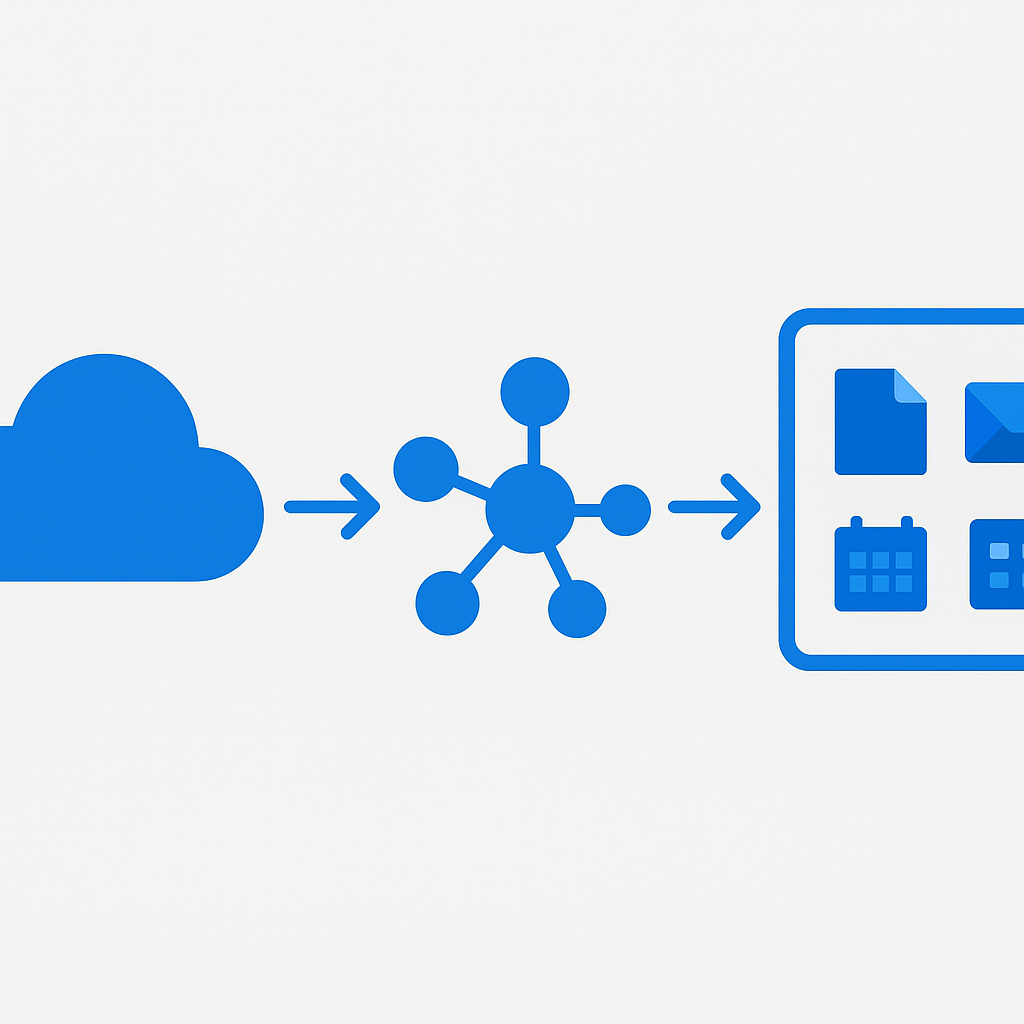
- Large Language Models (LLMs): The AI foundation, powered by OpenAI's GPT-4 models hosted within Microsoft's Azure infrastructure
- Microsoft Graph: Your organizational data — emails, files, chats, meetings, contacts, and calendar events — all connected through a unified API
- Microsoft 365 Apps: The familiar productivity suite where Copilot surfaces its capabilities
When a user issues a prompt in Copilot, the system follows a process called grounding. The prompt is enriched with relevant context from the Microsoft Graph — your recent documents, email threads, meeting transcripts, and more — before being sent to the LLM. This grounding step is what makes Copilot responses relevant to your specific work context rather than generic AI outputs.
Critically, Copilot respects existing access permissions. It can only access data that the individual user already has permission to see. This is both a security feature and a governance imperative — if your permissions are overly broad, Copilot will surface content that users technically have access to but perhaps shouldn't.
For a deep dive into the architecture, refer to Microsoft 365 Copilot overview.
Prerequisites and Licensing
Before you can deploy Copilot, several prerequisites must be in place:

Licensing Requirements
Microsoft 365 Copilot requires one of the following base licenses:
- Microsoft 365 E3 or E5
- Microsoft 365 Business Standard or Business Premium
- Office 365 E3 or E5
On top of the base license, you need the Microsoft 365 Copilot add-on license, which is priced per user per month. This is not a tenant-wide switch — you assign Copilot licenses to specific users, which gives you flexibility in phased rollouts.
Technical Prerequisites
- Azure Active Directory (Entra ID): Users must have Entra ID accounts with appropriate authentication configured
- OneDrive: Each Copilot user needs an active OneDrive account, as Copilot uses OneDrive for file grounding
- New Outlook or Outlook on the web: For Copilot in Outlook experiences
- Teams: Desktop or web client for Copilot in Teams features
- Network connectivity: Ensure your network allows traffic to Microsoft 365 Copilot endpoints
Review the full prerequisites at Get ready for Microsoft 365 Copilot.
Technical Readiness Assessment
This is where most organizations underestimate the effort required. A successful Copilot deployment starts months before license assignment with a thorough readiness assessment.
Data Governance and Permissions Audit
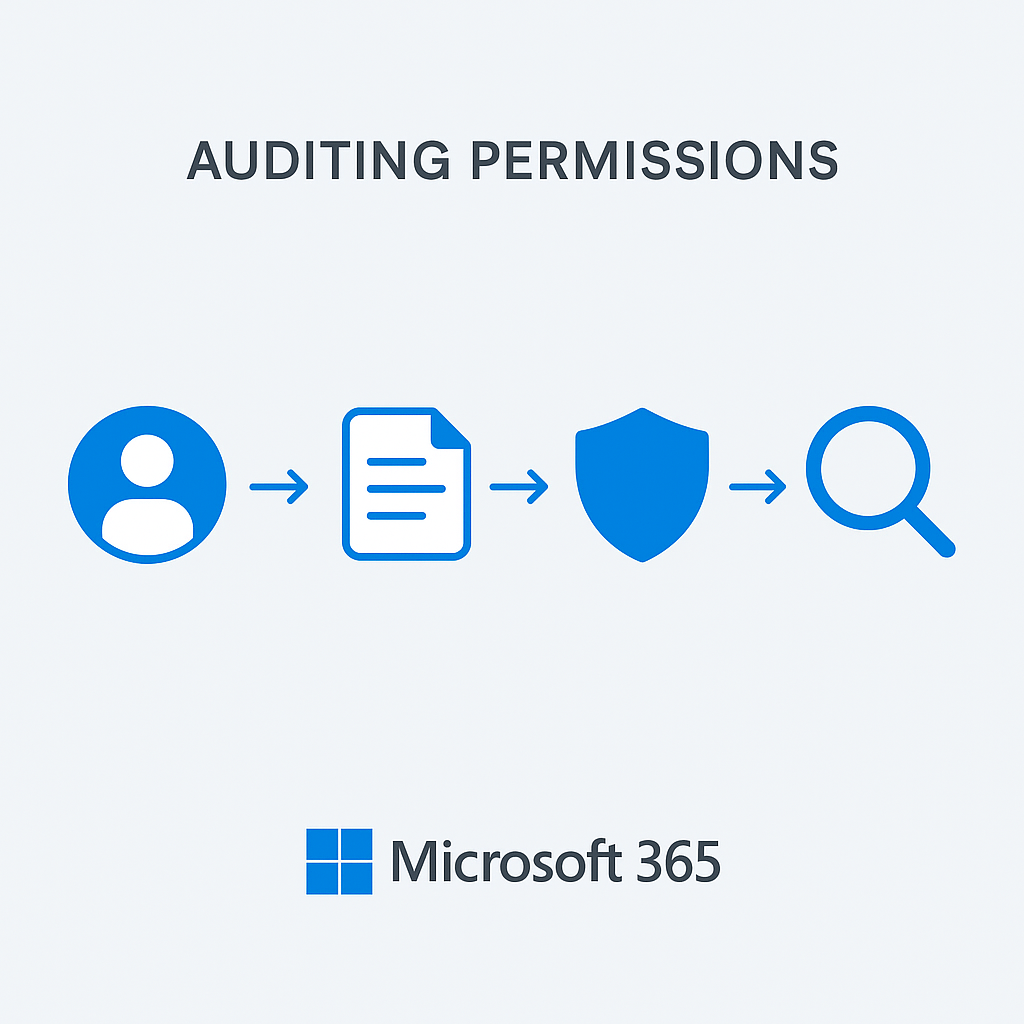
The single most important readiness activity is auditing your permissions model. Because Copilot can access everything a user can access, oversharing becomes immediately visible. I have seen organizations where Copilot surfaced salary documents to regular employees because a SharePoint site had overly permissive sharing settings that nobody noticed for years.
Key actions:
- Run a permissions audit using the SharePoint Admin Center or Microsoft Graph API to identify sites with broad access (e.g., "Everyone except external users")
- Review Microsoft 365 Groups membership — each group provides access to a SharePoint site, Teams channel, and shared mailbox
- Check external sharing settings across all SharePoint sites and OneDrive accounts
- Identify and classify sensitive content that should have restricted access
Sensitivity Labels
Deploy Microsoft Purview sensitivity labels before enabling Copilot. Labels help ensure that:
- Sensitive documents are properly classified
- Copilot respects encryption and access restrictions on labeled content
- Users understand the sensitivity of content Copilot surfaces
For implementation guidance, see Learn about sensitivity labels.
SharePoint Advanced Management
Consider enabling SharePoint Advanced Management (SAM) features, which provide:
- Data access governance reports showing overshared content
- Site access reviews for site owners
- Restricted access control for sensitive SharePoint sites
These tools are specifically designed to help organizations prepare for Copilot. More details at SharePoint Advanced Management overview.
Deployment Strategies
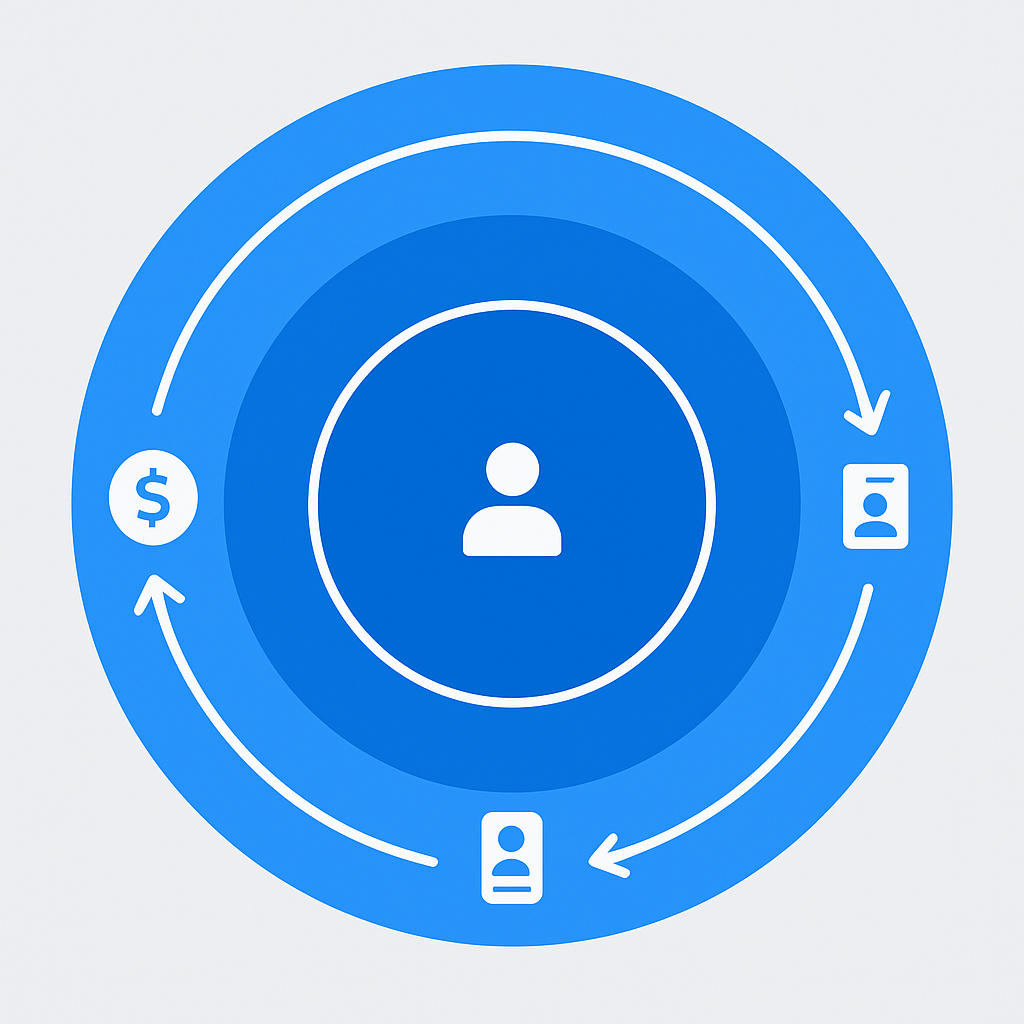
I strongly recommend a phased, ring-based deployment approach rather than a big-bang rollout.
Ring-Based Rollout
Ring 0 — IT and Champions (2-4 weeks):
- 20-50 users from IT, early adopters, and executive sponsors
- Focus on technical validation and initial feedback
- Document common use cases and quick wins
Ring 1 — Business Power Users (4-6 weeks):
- 100-200 users across different departments
- Include representatives from finance, HR, marketing, engineering, and operations
- Gather department-specific use cases and prompting patterns
Ring 2 — Broad Deployment (ongoing):
- Expand to remaining licensed users
- Leverage champions from Ring 0 and Ring 1 as peer mentors
- Scale training programs based on lessons learned
Pilot Group Selection
Choose pilot users who are:
- Engaged and willing to provide feedback
- Representative of diverse job functions
- Not exclusively technical — include business users
- Willing to invest time in learning effective prompting
For deployment planning, refer to Microsoft 365 Copilot adoption guide.
Copilot Across Microsoft 365 Applications
Each M365 application offers unique Copilot capabilities. Understanding these helps you tailor training and adoption strategies.
Copilot in Word
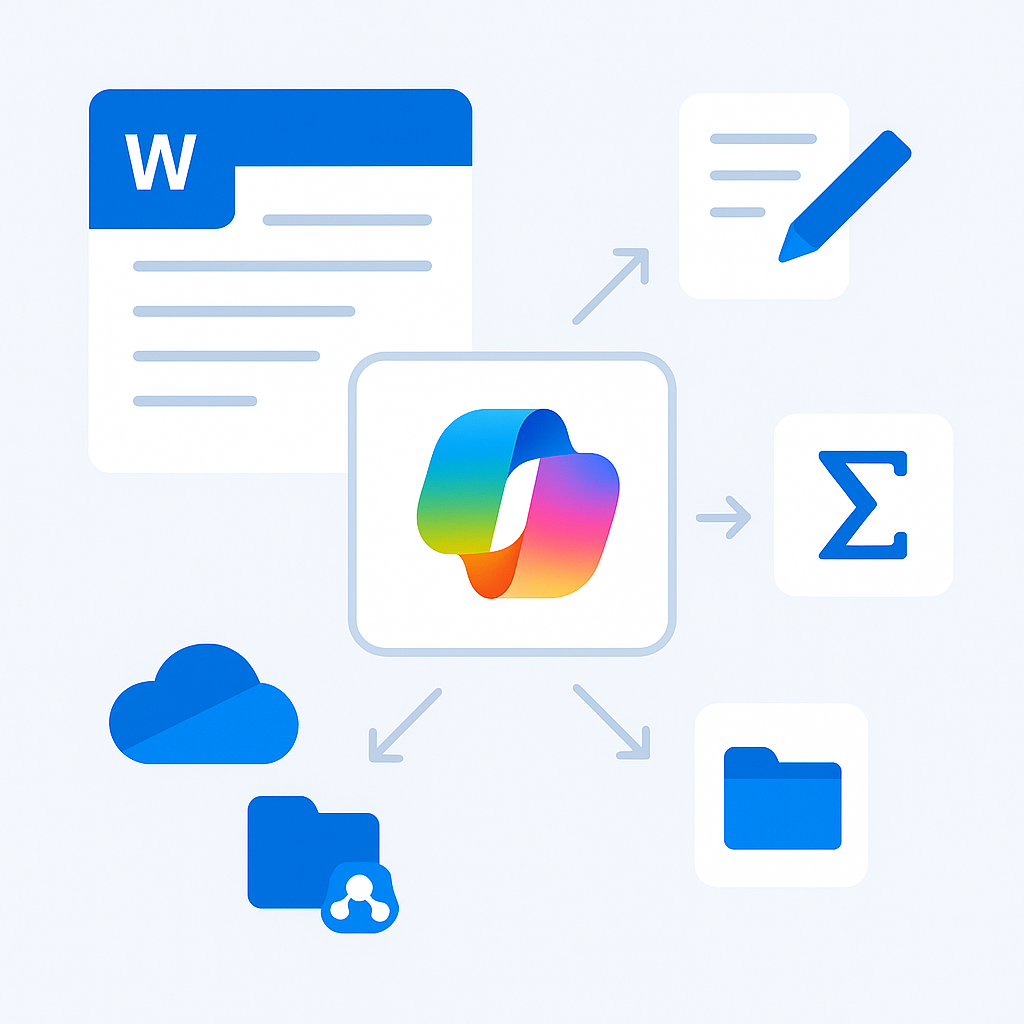
- Draft documents from scratch based on prompts or reference files
- Rewrite and transform existing content (change tone, length, format)
- Summarize long documents into key points
- Reference other files — Copilot can pull context from your OneDrive and SharePoint documents
Pro tip: The most effective prompts in Word reference specific documents. Instead of "Write a project proposal," try "Draft a project proposal for the Azure migration project based on /Requirements Document Q4.docx and our /Budget Template 2024.xlsx."
Copilot in Excel
- Analyze data using natural language queries
- Generate formulas and explain complex existing formulas
- Create charts and pivot tables based on data insights
- Identify trends and outliers in datasets
Important limitation: Copilot in Excel works best with structured data in Excel Tables. Ensure your data is formatted as a proper Table (Insert > Table) for optimal results.
Copilot in PowerPoint
- Create presentations from Word documents, PDFs, or prompts
- Add slides on specific topics to existing decks
- Redesign slides with professional layouts
- Summarize presentations and generate speaker notes
Copilot in Teams
- Meeting summaries with action items and key decisions
- Real-time meeting assistance during calls
- Chat thread summarization across channels
- Compose messages with appropriate tone and context
Teams Copilot is often the highest-value feature for organizations. Meeting recaps alone save significant time for people who attend back-to-back meetings.
Copilot in Outlook
- Draft emails with context from previous threads
- Summarize long email threads into key points
- Coach email tone for more effective communication
- Schedule suggestions based on calendar and email context
For the full capabilities reference, see Microsoft 365 Copilot capabilities.
The Semantic Index and Microsoft Graph
The Semantic Index for Copilot is a sophisticated indexing layer that sits between the Microsoft Graph and the LLM. It creates a conceptual map of your organization's data, enabling Copilot to find relevant information even when exact keyword matches do not exist.
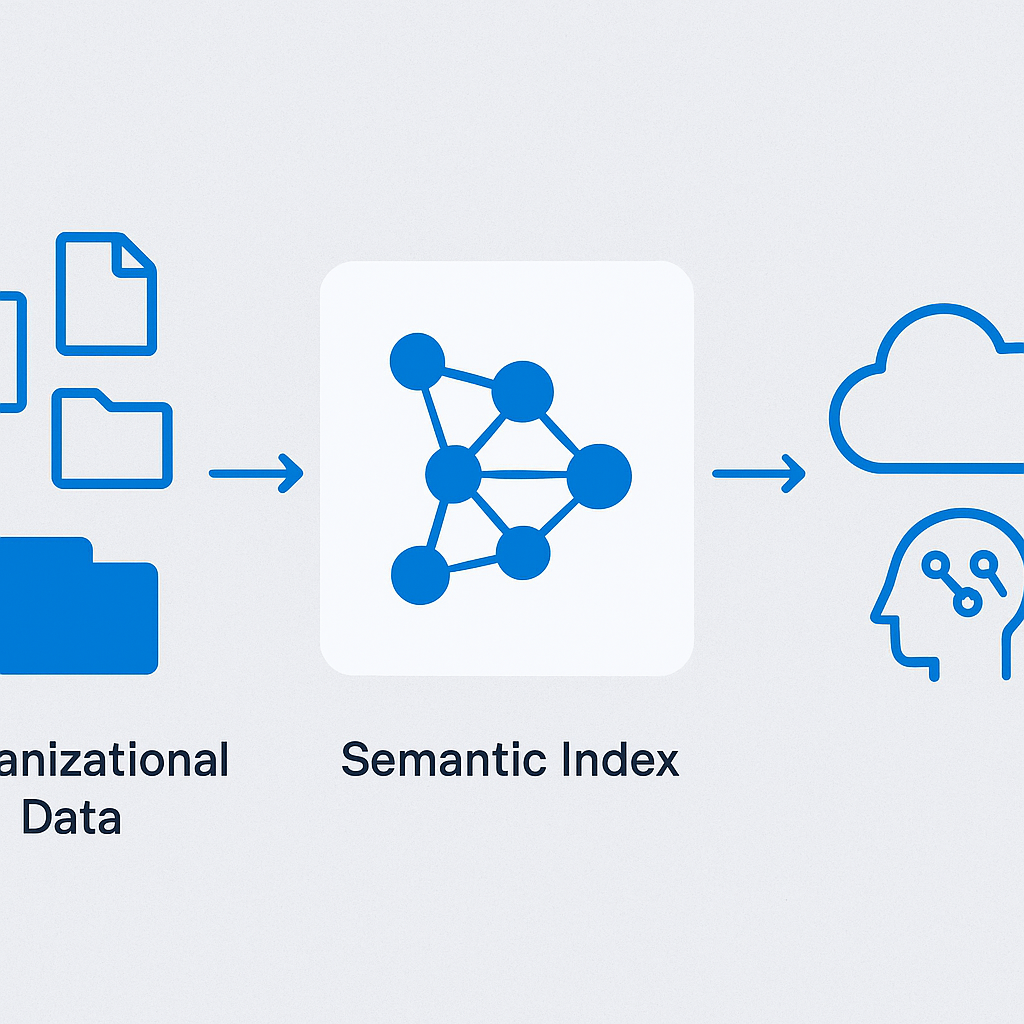
The Semantic Index:
- Generates vector embeddings of your organizational content
- Enables semantic search across all Microsoft 365 content
- Respects existing permissions — indexed content is only accessible to authorized users
- Updates continuously as new content is created and modified
The Microsoft Graph provides the data backbone, connecting:
- People: Organizational hierarchy, working relationships, collaboration patterns
- Content: Documents, emails, chat messages, meeting recordings
- Activities: Recent files, shared items, trending content
- Signals: Who you work with most, what content is most relevant to your role
Understanding this architecture helps explain why Copilot sometimes surfaces unexpected content — if you have access to a document, the Semantic Index includes it in your personal search scope.
Learn more at Semantic Index for Copilot.
Security and Compliance Considerations
Security is paramount when deploying AI tools that access organizational data. Microsoft 365 Copilot is built with enterprise security in mind, but proper configuration is essential.
Data Residency and Processing
- Copilot processes data within your Microsoft 365 tenant's geographic boundary
- Prompts and responses are not used to train the underlying LLM
- Data is processed in compliance with your existing Microsoft 365 data residency commitments
- All interactions are logged and auditable
Compliance Controls
- Audit logs: All Copilot interactions are captured in the Microsoft 365 unified audit log
- eDiscovery: Copilot interactions in Teams and Outlook are discoverable
- Retention policies: Apply existing retention policies to Copilot-generated content
- DLP policies: Data Loss Prevention policies apply to content Copilot helps create
Conditional Access
You can control Copilot access through Entra ID Conditional Access policies, restricting usage based on:
- Device compliance status
- Network location
- User risk level
- Application sensitivity
For the complete security documentation, see Data, Privacy, and Security for Microsoft 365 Copilot.
Measuring Adoption and ROI
Deploying Copilot is only the beginning. Measuring its impact requires a structured approach.
Microsoft Copilot Dashboard
The Copilot Dashboard in Viva Insights provides:
- Adoption metrics: Active users, feature usage, adoption trends
- Impact metrics: Time saved, meeting efficiency, content creation velocity
- Sentiment data: User satisfaction and perceived value
- Department-level breakdowns: Identify which teams benefit most
Key Metrics to Track
Quantitative:
- Number of active Copilot users vs. licensed users
- Average weekly Copilot interactions per user
- Time savings reported (self-reported and system-measured)
- Meeting summary adoption rate
- Document creation velocity changes
Qualitative:
- User satisfaction surveys (monthly during rollout)
- Use case library growth
- Champion network engagement
- Support ticket volume related to Copilot
ROI Framework
Build your ROI case around three categories:
- Time savings: Hours saved per user per week on routine tasks (typically 2-4 hours for active users)
- Quality improvement: Better first drafts, more consistent communications, fewer iterations
- Knowledge discovery: Faster access to organizational knowledge, reduced duplication of work
For analytics setup, see Microsoft Copilot Dashboard.
Common Pitfalls and How to Avoid Them
After working with numerous enterprise deployments, these are the most frequent mistakes I see:
1. Skipping the Permissions Audit
The problem: Organizations deploy Copilot without cleaning up permissions, and users suddenly discover they can access content they should not see — through Copilot's helpful surfacing of "relevant" documents.
The fix: Conduct a thorough permissions audit at least 8 weeks before Copilot deployment. Use SharePoint Advanced Management data access governance reports.
2. Insufficient Training
The problem: Users receive a brief demo and are expected to figure out prompting on their own. Result: low adoption and complaints that "Copilot doesn't work."
The fix: Invest in role-specific training. A finance analyst needs different prompting skills than a marketing manager. Create a prompt library with tested examples for each department.
3. No Executive Sponsorship
The problem: Copilot is deployed as an IT project without visible executive advocacy.
The fix: Ensure at least one C-level sponsor actively uses and champions Copilot. Executive meeting summaries and board deck preparation are excellent high-visibility use cases.
4. Ignoring Change Management
The problem: Technology deployment without organizational change management leads to resistance and low adoption.
The fix: Appoint Copilot champions in each department. Create feedback channels. Celebrate wins publicly. Address concerns transparently.
5. Unrealistic Expectations
The problem: Stakeholders expect Copilot to replace jobs or produce perfect output every time.
The fix: Frame Copilot as an assistant, not a replacement. Emphasize that human review is always required. Set expectations that Copilot output quality improves as users learn better prompting techniques.
Best Practices for Maximizing Value
Based on successful deployments I have led, here are the practices that consistently drive the highest value:
Build a Prompt Library
Create a shared repository of effective prompts organized by:
- Role (manager, analyst, marketer, engineer)
- Task type (summarize, draft, analyze, brainstorm)
- Application (Word, Excel, Teams, Outlook)
Share this library through a SharePoint site or Teams channel dedicated to Copilot.
Establish a Champion Network
Identify 1-2 champions per 50 users who:
- Receive advanced training
- Host regular "Copilot coffee chats"
- Curate and share effective prompts
- Provide first-line peer support
- Feed insights back to the deployment team
Iterate on Governance
Your governance model should evolve with Copilot adoption:
- Month 1-3: Focus on permissions cleanup and baseline monitoring
- Month 3-6: Refine sensitivity labels and DLP policies based on Copilot usage patterns
- Month 6-12: Implement advanced governance automation and self-service tools
Integrate with Existing Workflows
Copilot delivers the most value when integrated into existing business processes, not used as a standalone tool:
- Weekly team meetings: Use Copilot meeting recaps as the default summary format
- Document review cycles: Start with Copilot-generated first drafts
- Email management: Train users on thread summarization for inbox triage
- Data analysis: Embed Copilot-assisted analysis into reporting workflows
Monitor and Optimize Continuously
Set up a monthly review cadence:
- Review Copilot Dashboard metrics
- Analyze support tickets and feedback
- Update prompt library with new effective patterns
- Identify departments or roles with low adoption for targeted support
- Adjust training materials based on common challenges
Looking Ahead
Microsoft 365 Copilot is evolving rapidly, with new capabilities added regularly. Stay current by monitoring the Microsoft 365 Roadmap and participating in the Microsoft 365 Copilot community.
The organizations that will see the greatest long-term value from Copilot are those that treat it not as a one-time deployment but as an ongoing transformation initiative — continuously refining governance, expanding use cases, and investing in their people's ability to work effectively alongside AI.
The AI era is here. The question is not whether to adopt tools like Copilot, but how thoughtfully you prepare your organization to maximize their potential while maintaining the security and governance standards your business demands.
For more resources on Microsoft 365 Copilot deployment, visit the Microsoft 365 Copilot documentation hub and the Microsoft Adoption portal.