Data Governance for AI: Step-by-Step Microsoft 365 Guide
· AI Governance · 14 min read
By Juan Pedro Márquez
Why Your AI Deployment Will Fail Without Data Governance
Consider this scenario: a financial services organisation with thousands of users has a board-level mandate to deploy Copilot by Q2. Six weeks before go-live, the CISO pulls the plug. Not because of a security flaw in the product. Because a permission audit reveals that hundreds of SharePoint sites are shared with "Everyone except external users." Payroll reports. Board minutes. M&A documents. All of them reachable by any Copilot query from any employee.
This scenario is not unusual. AI deployments that fail or underperform share a common root cause: insufficient data governance. The AI model is fine. The integration is sound. But the underlying data — its quality, classification, permissions, and lifecycle — was not ready.
Microsoft 365 Copilot and custom Azure AI Foundry applications trust what they find. If they find outdated policies, contradictory procedures, or content accessible to the wrong people, they faithfully present that content. AI amplifies your data governance strengths and weaknesses equally.
My recommendation: treat data governance as the project, and AI deployment as the reward for completing it.
This guide gives you a systematic approach to preparing your Microsoft 365 data estate for AI workloads, with specific tools, scripts, and processes you can run this week.
For an overview of data governance in Microsoft 365, see Microsoft Purview data governance.
Before you start
- [ ] Run a SharePoint permission report and confirm how many sites are shared with "Everyone except external users" — you need a baseline number before anything else
- [ ] Confirm your Microsoft Purview licensing tier: sensitivity labels and auto-labeling require Microsoft 365 E3 minimum; AI Hub and advanced DLP require E5 or Compliance add-on
- [ ] Identify a data governance lead with authority to remediate permissions — without named ownership this initiative stalls at week two
- [ ] Document which SharePoint sites contain regulated data (GDPR personal data, financial records, HR records) — these drive your remediation priority order
- [ ] Verify that your Global Admin or SharePoint Admin account can run PnP PowerShell and connect to the Purview compliance portal
- [ ] Confirm your planned Copilot rollout date — this determines whether you have weeks or months, which changes the remediation scope you can realistically complete
- [ ] Check whether information barriers are required by your industry regulation (financial services, legal) — these must be configured before Copilot goes live, not after
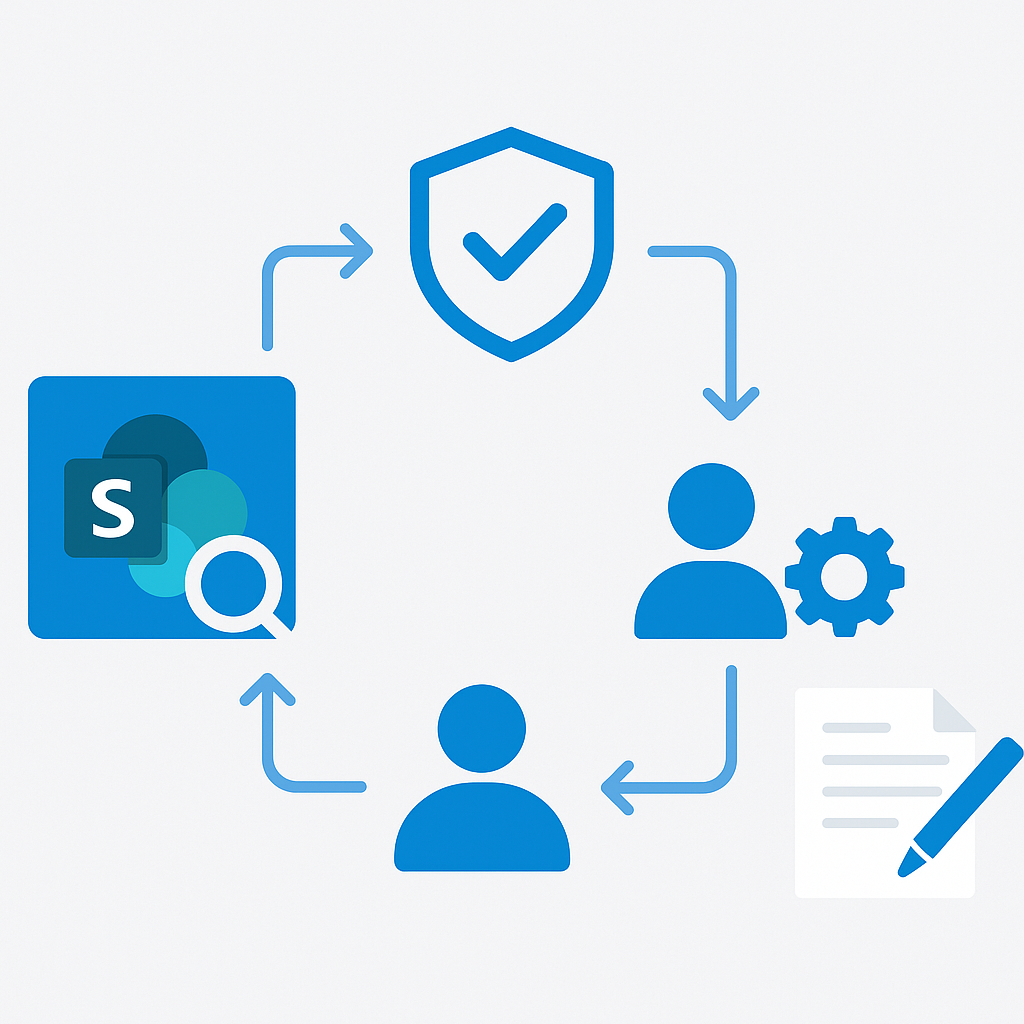
The Data Governance Maturity Model for AI
Assess your organisation's readiness using this maturity model:
Level 1: Ad Hoc
- No formal data classification
- Permissions managed reactively
- No retention policies
- AI readiness: Not ready. AI deployment creates significant risk.
Level 2: Basic
- Some sensitivity labels defined but inconsistently applied
- Permission audits conducted annually
- Basic retention policies for email and documents
- AI readiness: Partially ready. Can pilot AI with restricted scope (Restricted SharePoint Search).
Level 3: Managed
- Comprehensive sensitivity label taxonomy with auto-labeling
- Quarterly permission reviews with remediation
- Content lifecycle management with disposition reviews
- AI readiness: Ready for broad Copilot deployment with monitoring.
Level 4: Optimized
- AI-aware governance policies with continuous monitoring
- Automated permission management and anomaly detection
- Proactive content quality management
- AI readiness: Fully ready. Can deploy advanced AI scenarios with confidence.
Most organisations I assess are at Level 1 or 2. The goal is to reach Level 3 before broad AI deployment.
Microsoft Purview Information Protection for AI
Microsoft Purview Information Protection provides the tools to classify and protect your data for AI readiness.

Sensitivity Labels Strategy for AI Scenarios
Design your sensitivity labels with specific AI behaviours in mind:
| Label | Protection | AI Interaction |
|-------|-----------|---------------|
| Public | None | Fully accessible to Copilot and custom AI. No restrictions. |
| General | Visual marking | Copilot can access. Standard sharing controls apply. |
| Confidential | Encryption (org-wide) | Copilot can access if user has permission. DLP monitors AI outputs. |
| Highly Confidential | Encryption (named users) | Consider excluding from Copilot via RSS. Strict DLP enforcement. |
| Regulated | Encryption + no forwarding | Excluded from Copilot. Manual access only through approved channels. |
Auto-Labeling Policies for AI Readiness
Deploy auto-labeling at scale to achieve comprehensive classification:
Client-side auto-labeling (Office apps):
Policy: Detect financial content
Conditions: Content contains credit card numbers OR bank account numbers
Action: Recommend "Confidential - Finance" label
Service-side auto-labeling (SharePoint, OneDrive):
Policy: Classify HR documents
Conditions:
  - Content matches trainable classifier "HR documents"
  - OR content contains sensitive info type "Employee ID"
Location: HR SharePoint sites + OneDrive accounts of HR team
Action: Apply "Confidential - HR" label
For sensitivity label deployment, see Create and configure sensitivity labels.
Data Loss Prevention for AI Features
DLP policies need specific configurations for AI workloads.
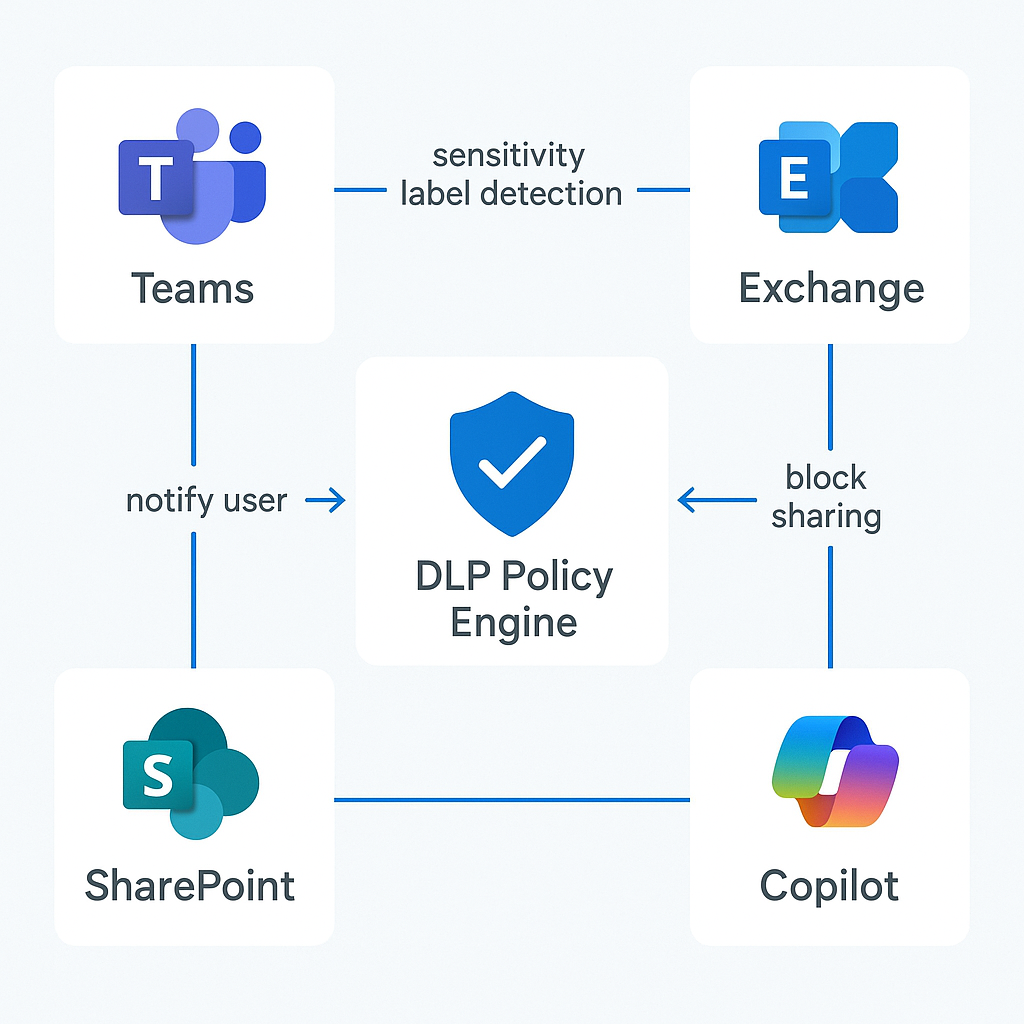
AI-Specific DLP Policies
Policy 1: Prevent Copilot from leaking sensitive data
Name: AI Content Protection
Locations: Microsoft 365 Copilot, Teams, Exchange, SharePoint
Conditions:
  - Content contains sensitivity label "Confidential" or higher
  - AND content is shared externally
Actions:
  - Block sharing
  - Notify user with policy tip
  - Alert compliance team
Policy 2: Monitor AI-generated content
Name: AI Output Monitoring
Locations: Microsoft 365 Copilot interactions
Conditions:
  - Content contains sensitive information types (SSN, credit card, etc.)
Actions:
  - Generate incident report
  - Alert data protection officer
Policy 3: Restrict sensitive data in AI prompts
Name: AI Prompt Protection
Conditions:
  - User input to Copilot contains PII patterns
Actions:
  - Warn user about including sensitive data in prompts
  - Log for compliance review
For DLP configuration, see DLP policy reference.
Questions to ask your team
1. Which sites would cause a compliance incident if Copilot surfaced their content to the wrong person?
This forces the business to prioritise the remediation list instead of treating all sites equally — it cuts months off the audit timeline.
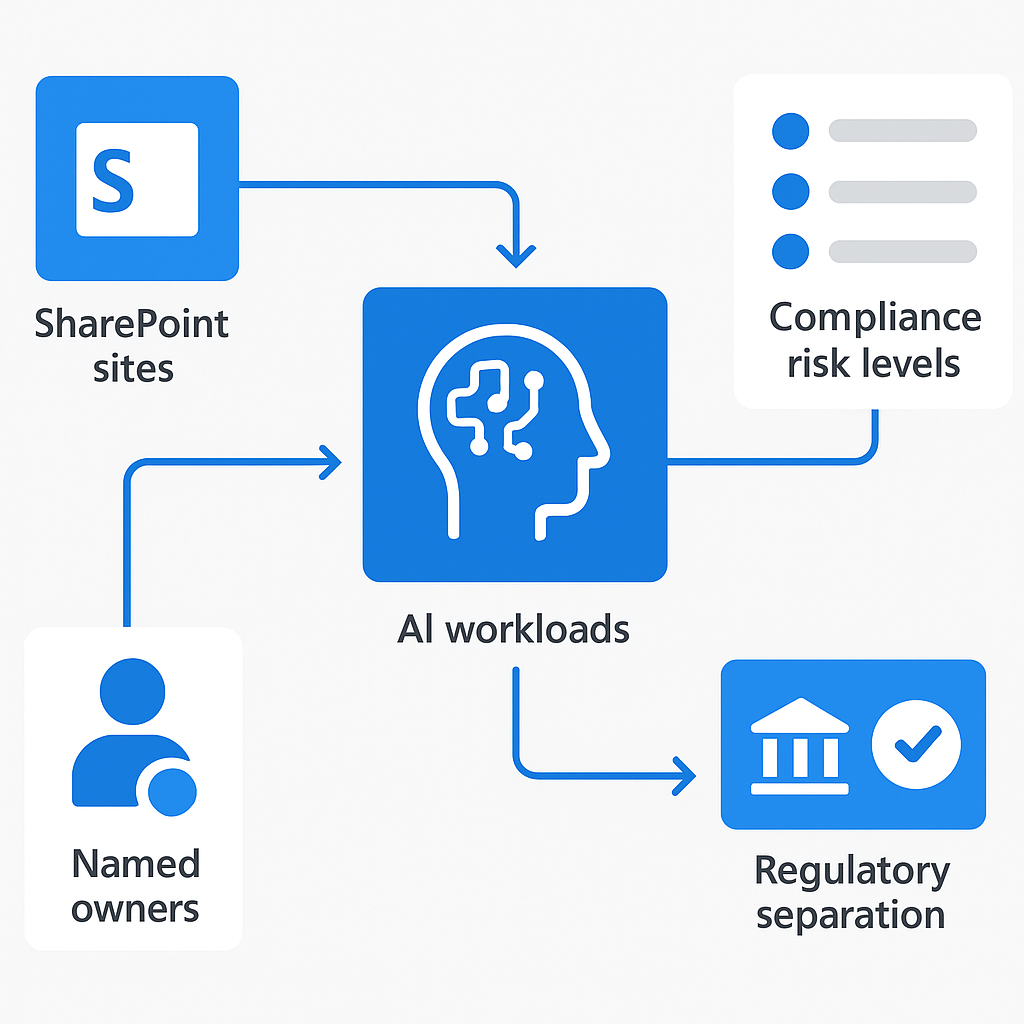
2. Who is the named owner of each high-risk SharePoint site, and do they know they own it?
Without named ownership, permission reviews produce a report that no one acts on.
3. Do any teams have regulatory requirements for information separation (Chinese walls, GDPR purpose limitation)?
Information barriers and sensitivity label encryption must be in place before Copilot goes live, not retrofitted after an incident.
4. What is our current labelling coverage — what percentage of SharePoint content has a sensitivity label applied?
If the answer is under 30%, auto-labeling needs to run for at least 60 days before Copilot deployment is safe.
5. Is our planned rollout date fixed or can governance maturity gate it?
A fixed date with a Level 1 governance posture is how you end up in the CISO's office explaining a data exposure. Make the date conditional.
6. Who reviews the Purview AI Hub data after go-live, and how often?
Governance without a named reviewer and a cadence is theatre.
Information Barriers and AI Impact
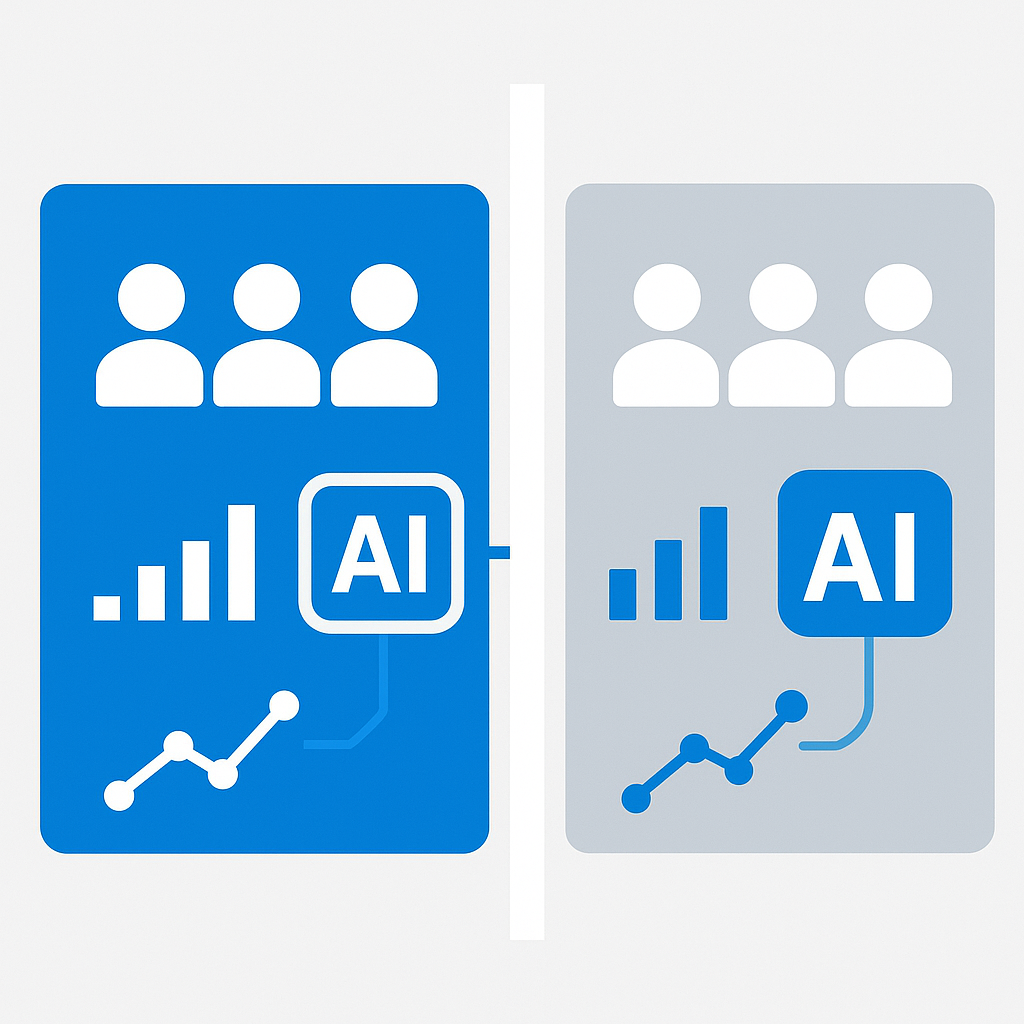
Information barriers create communication boundaries between groups. They have direct implications for AI:
How Information Barriers Affect Copilot
- Copilot respects information barriers — a user in Segment A cannot receive AI-generated content from Segment B's data
- This matters for financial services (Chinese wall requirements), legal firms, and any organisation with regulatory separation requirements
- Information barriers must be configured before AI deployment, not after
Configuration Example
# Create segments
New-InformationBarrierSegment -Name "Investment Banking" -UserGroupFilter "Department -eq 'Investment Banking'"
New-InformationBarrierSegment -Name "Research" -UserGroupFilter "Department -eq 'Research'"

# Create barrier policy
New-InformationBarrierPolicy -Name "IB-Research Barrier" `
  -AssignedSegment "Investment Banking" `
  -SegmentsBlocked "Research" `
  -State Active

# Apply policies
Start-InformationBarrierPoliciesApplication
For information barriers, see Information barriers in Microsoft 365.
Microsoft Purview AI Hub
Purview AI Hub provides visibility into how AI interacts with your organisational data.
Key Capabilities
- AI usage analytics: See which users are using AI features and how frequently
- Data access monitoring: Track which data sources AI is accessing
- Sensitive content alerts: Get notified when AI interactions involve classified content
- Policy compliance: Monitor whether AI usage aligns with your governance policies
- Trend analysis: Identify patterns in AI usage over time
Setting Up AI Hub
- Navigate to Microsoft Purview compliance portal
- Go to AI Hub in the left navigation
- Configure data connectors for Microsoft 365 Copilot
- Set up alert policies for sensitive content interactions
- Create custom views for different governance stakeholders
Monitoring Queries
Use AI Hub to answer critical governance questions:
- Which sensitivity labels are most frequently accessed by Copilot?
- Are there patterns of AI accessing content from restricted sites?
- Which departments have the highest AI usage?
- Are there anomalous access patterns that suggest misuse?
For Purview AI Hub, see Microsoft Purview AI Hub overview.
SharePoint Advanced Management for AI
SharePoint Advanced Management (SAM) provides specific tools for AI data governance.
Data Access Governance Reports
SAM generates reports showing:
- Sites with the broadest sharing (potential oversharing)
- Content shared with "Everyone except external users"
- Sharing link statistics by type (Anyone, Organisation, Specific people)
- Guest user access patterns
Site Access Reviews
Automated site access reviews prompt site owners to verify:
- Who has access to their site
- Whether the access level is appropriate
- Whether external sharing is justified
- Whether the content classification is correct
Restricted Access Control
Apply restricted access control policies to sensitive sites:
# Restrict a site to members only (no implicit access)
Set-SPOSite -Identity "https://contoso.sharepoint.com/sites/Executive" `
  -RestrictedAccessControl $true
For SAM features, see SharePoint Advanced Management.
Restricted SharePoint Search (RSS)
RSS is the single most practical tool for phased AI deployment. I use it with almost every customer.
How RSS Works
- By default, Copilot can search all SharePoint sites the user has access to
- With RSS enabled, you define an allow list of sites Copilot can search
- Users retain normal access to all sites — RSS only affects Copilot's search scope
- This lets you enable Copilot immediately while gradually expanding its data access as governance remediation completes
Implementation
# Enable Restricted SharePoint Search
Set-SPOTenant -IsDataAccessInSharePointOnlineEnabled $false

# Add sites to the allow list
Add-SPOTenantRestrictedSearchAllowedList `
  -SiteUrl "https://contoso.sharepoint.com/sites/ITKnowledgeBase"
Add-SPOTenantRestrictedSearchAllowedList `
  -SiteUrl "https://contoso.sharepoint.com/sites/CompanyPolicies"
Add-SPOTenantRestrictedSearchAllowedList `
  -SiteUrl "https://contoso.sharepoint.com/sites/ProductDocs"
Expansion Strategy
| Phase | Sites in Allow List | Timeline |
|-------|-------------------|----------|
| Phase 1 | IT Knowledge Base, Company Policies | Week 1-4 |
| Phase 2 | + Department sites (HR, Finance, Marketing) | Week 5-8 |
| Phase 3 | + Project sites with governance review | Week 9-12 |
| Phase 4 | Disable RSS (full access) | After governance remediation complete |
Oversharing Remediation with PowerShell
Identify Overshared Sites
# Find all sites shared with "Everyone except external users"
$oversharedSites = @()
Get-SPOSite -Limit All | ForEach-Object {
    $siteUrl = $_.Url
    try {
        $groups = Get-SPOSiteGroup -Site $siteUrl
        foreach ($group in $groups) {
            if ($group.Users -contains "c:0-.f|rolemanager|spo-grid-all-users") {
                $oversharedSites += [PSCustomObject]@{
                    SiteUrl = $siteUrl
                    GroupTitle = $group.Title
                    Permissions = ($group.Roles -join ", ")
                }
            }
        }
    } catch {
        Write-Warning "Cannot access $siteUrl : $_"
    }
}
$oversharedSites | Export-Csv "OversharedSites.csv" -NoTypeInformation
Write-Host "Found $($oversharedSites.Count) overshared site-group combinations"
Remediate Oversharing
# Remove "Everyone except external users" from a specific site
$siteUrl = "https://contoso.sharepoint.com/sites/FinanceReports"
$groups = Get-SPOSiteGroup -Site $siteUrl

foreach ($group in $groups) {
    if ($group.Users -contains "c:0-.f|rolemanager|spo-grid-all-users") {
        Remove-SPOUser -Site $siteUrl -LoginName "c:0-.f|rolemanager|spo-grid-all-users" -Group $group.Title
        Write-Host "Removed 'Everyone' from $($group.Title) on $siteUrl"
    }
}
Fix Default Sharing Settings
# Set restrictive sharing defaults tenant-wide
Set-SPOTenant `
  -DefaultSharingLinkType Direct `
  -DefaultLinkPermission View `
  -PreventExternalUsersFromResharing $true `
  -RequireAnonymousLinksExpireInDays 30
Cross-Border Data Residency Considerations
For organisations operating across multiple geographies, data residency is a governance concern that directly affects AI workload design.
Where AI Processing Happens
- Microsoft 365 Copilot: Processes data within your tenant's geographic boundary (data at rest). AI inference may occur in a different region depending on model availability
- Azure OpenAI: Data is processed in the region where your Azure OpenAI resource is deployed. Choose regions aligned with your compliance requirements
- Azure AI Search: Index data resides in the region of your Search service. For multi-geo organisations, consider regional indexes
Compliance Strategies
- Data sovereignty: Deploy Azure AI resources in regions that comply with local regulations (EU data must stay in EU regions)
- Multi-region architecture: Create separate AI Foundry hubs per region for teams in different geographies
- Data movement controls: Use Azure Policy to prevent AI resources from being created in non-compliant regions
- Documentation: Maintain records of data processing locations for regulatory audits
EU-Specific Considerations
For organisations subject to GDPR and the EU Data Boundary:
- Microsoft commits to storing and processing EU customer data within the EU Data Boundary
- Azure OpenAI Service is available in EU regions (West Europe, North Europe, Sweden Central, France Central)
- Verify that all AI components (compute, storage, inference) are deployed within EU regions
Data Lifecycle Management
Content Freshness for AI Quality
Stale content is one of the most common sources of poor AI responses. Implement lifecycle management:
- Content expiration: Set review dates on knowledge base documents
- Automated reminders: Power Automate flow that notifies document owners when review is due
- Archival policies: Automatically archive content older than 2 years that has not been reviewed
- Version control: Maintain document version history but trim old versions to manage storage
Retention Policies for AI Logs
Retention Policy: AI Interaction Logs
Locations: Microsoft 365 Copilot interactions
Retention: 1 year retain, then delete
Purpose: Compliance audit trail and governance review
Audit Logging and Compliance Reporting
Unified Audit Log for AI
The Microsoft 365 unified audit log captures all Copilot interactions:
# Search for Copilot interactions in the audit log
Search-UnifiedAuditLog `
  -StartDate (Get-Date).AddDays(-30) `
  -EndDate (Get-Date) `
  -RecordType "CopilotInteraction" `
  -ResultSize 5000 | Export-Csv "CopilotAuditLog.csv"
Compliance Reports
Generate regular compliance reports covering:
- AI usage by department and user
- Sensitive content accessed through AI
- DLP policy matches related to AI
- Information barrier compliance
- Content classification coverage (% of content with sensitivity labels)
Your implementation checklist
Plan
- [ ] Run the oversharing PowerShell script and export results to CSV — get your baseline number before any other conversation
- [ ] Classify all SharePoint sites by data sensitivity: Public / General / Confidential / Regulated
- [ ] Define your sensitivity label taxonomy (4-5 labels maximum) aligned to your actual data types
- [ ] Identify your initial RSS allow list — the 5-10 sites with clean governance and high AI value
Build
- [ ] Deploy sensitivity labels and enable service-side auto-labeling on SharePoint and OneDrive
- [ ] Configure AI-specific DLP policies in audit mode (not enforcement — collect data first)
- [ ] Enable Restricted SharePoint Search with your initial allow list
- [ ] Configure Purview AI Hub and set up alert policies for sensitive content interactions
- [ ] Remediate oversharing on all sites containing HR, financial, or legal content
Test
- [ ] Verify Copilot only returns results from RSS allow-listed sites
- [ ] Confirm sensitivity label encryption blocks Copilot from accessing Highly Confidential content
- [ ] Test DLP policy tips appear correctly for the defined content patterns
- [ ] Run a sample audit log query and confirm Copilot interactions are captured
Deploy
- [ ] Switch DLP policies from audit to enforcement mode (graduated — start with one policy)
- [ ] Expand RSS allow list after governance review of each additional site
- [ ] Schedule quarterly site access reviews via Entra ID Governance
- [ ] Set a 90-day review date for the full governance posture — document what has changed
For comprehensive data governance guidance, visit the Microsoft Purview documentation, the SharePoint Advanced Management overview, and the Microsoft 365 Copilot data governance guide.
📋 Free Download: The Microsoft AI Governance Playbook
Everything covered in this article — the 3-layer framework, the decision matrix, the 20-question readiness assessment, and the 5 failure modes I see every month in EMEA — is packaged in a single PDF for IT Directors and CIOs.
_(Get the free PDF by entering your email in the form below.)_
Ready to map your specific governance roadmap? Let's talk →