Copilot Studio: Build Your First AI Agent (2026)
· AI Agents · 14 min read
By Juan Pedro Márquez
The IT helpdesk agent that changed how I think about this platform
A manufacturing client in Valencia — 3,000 employees, a lean IT team of twelve — was drowning in password reset tickets. Sixty-three percent of their Level 1 volume. They had tried a chatbot two years earlier. It lasted four months before users stopped trusting it and routed around it directly to email.
When I proposed rebuilding this with Microsoft Copilot Studio, the IT Director's exact words were: "We've been burned before." I get that. The first generation of enterprise chatbots was brittle. They were scripted decision trees dressed up in conversational clothing. The moment a user said something unexpected, the bot broke. Every exception became a maintenance task.
What I showed him was architecturally different. This wasn't a chatbot. It was an agent — and the distinction matters. Where a chatbot responds, an agent acts. It reasons across steps, calls external systems, retrieves knowledge from your actual documentation, and completes multi-turn tasks without constant human hand-holding. We built the IT helpdesk agent in three weeks. Twelve months later, that IT Director told me it handles 71% of Level 1 tickets without human intervention.
My recommendation is straightforward: if you are building an AI agent for internal operations and your organization runs Microsoft 365, Microsoft Copilot Studio is where you start. Not because it is the most powerful platform available — Azure AI Foundry Agent Service goes deeper. Not because it has no ceiling — it does. But because for the majority of enterprise use cases, it gets you to production faster, with better governance, and with lower operational risk than any alternative I have deployed.
This guide is the article I wish had existed when I first started building production-grade agents on Copilot Studio. It is opinionated, practical, and written from real enterprise deployments across Spain and Europe.
Before you start
Rushing past this section is how teams end up rebuilding six months later. Confirm every item before you write your first topic.
- [ ] Copilot Studio capacity provisioned — check with your Microsoft account team for message-based capacity; the billing model moved to consumption-based in 2024 and underprovisioning at scale is a painful lesson
- [ ] Microsoft 365 E3 or E5 licenses confirmed for your target user population — E5 is required if you want full sensitivity label integration with Purview
- [ ] A non-default, production-ready Power Platform environment with Dataverse enabled — the default environment is not appropriate for enterprise workloads
- [ ] Power Automate access confirmed (included in M365 E3+) and at least one test flow successfully executed
- [ ] SharePoint Online knowledge site identified and scoped — specific libraries, not entire intranet — with content owners briefed on AI grounding requirements
- [ ] Global Administrator or Power Platform Administrator role available for initial environment configuration
- [ ] Agent persona defined in writing before touching the portal: who it is, how it speaks, what it will not answer, and what the escalation path looks like when it cannot help
- [ ] DLP policy review completed for your Power Platform environment — know which connectors are blocked before you design your integration layer
Understanding the Copilot Studio Architecture
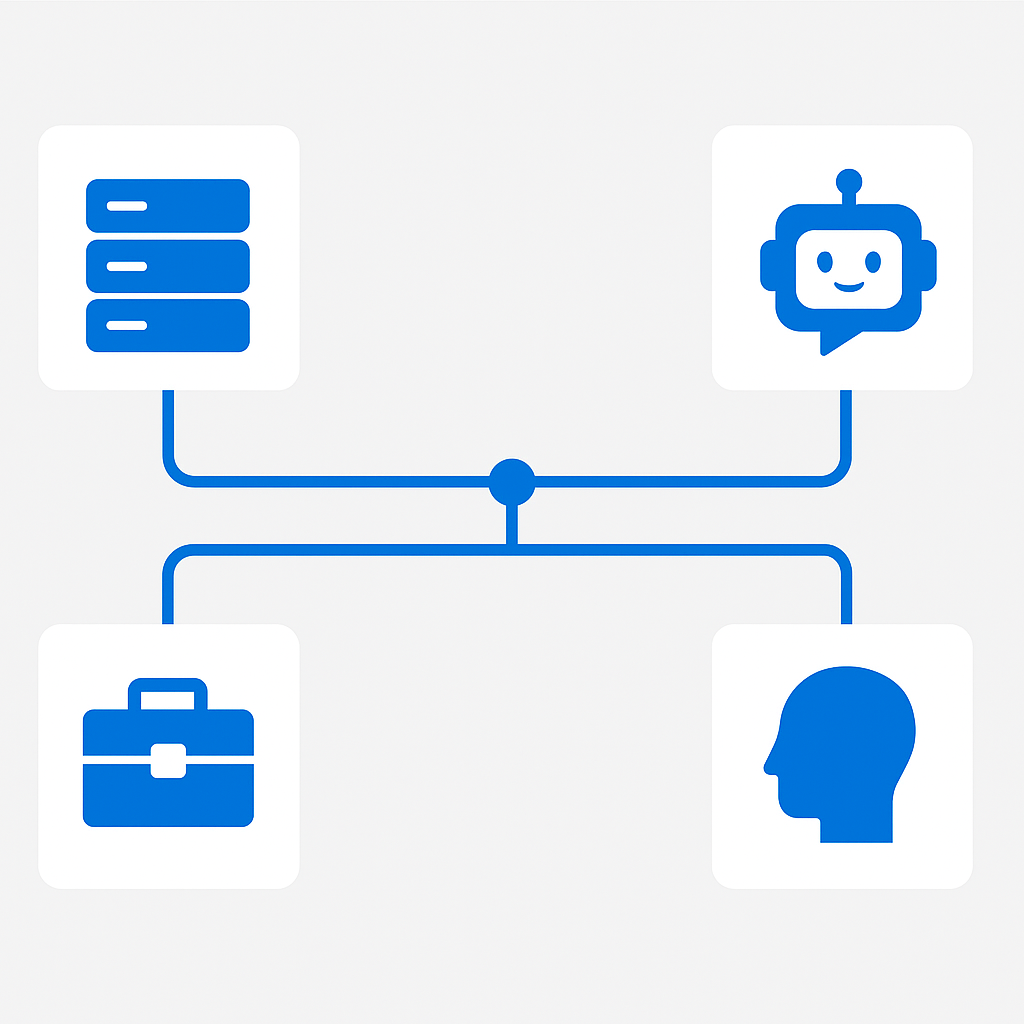
Before touching the portal, build a mental model of the core primitives. Copilot Studio agents are assembled from four conceptual layers:
Topics
Topics are the fundamental unit of conversation logic. Each topic represents a discrete intent — a thing the user might want. A topic has a trigger (what activates it), a conversation flow (the sequence of questions, messages, and conditions), and an output (what happens at the end). Think of topics as functions in a conversation program.
Generative Answers and Knowledge Sources
The architectural shift that separates modern Copilot Studio from its Power Virtual Agents predecessor is the integration of generative AI directly into the conversation layer. Rather than building a topic for every conceivable question, you can connect the agent to knowledge sources — SharePoint sites, public websites, uploaded documents — and let the underlying language model synthesize answers grounded in your content.
The generative answers overview explains how this grounding works technically. The key operational concept is confidence thresholds: when the model is not confident enough in its grounded answer, you control what happens next.
Actions
Actions are how agents do things. Copilot Studio supports several action types:
- Power Automate flows — the primary integration mechanism for enterprise systems
- Connectors — direct API calls to first- and third-party services
- AI Builder prompts — for structured AI-powered data extraction within a flow
- HTTP requests — for custom API integration when a connector does not exist
Channels
Channels are the surfaces where your agent is deployed. Microsoft Teams is the dominant enterprise channel, but Copilot Studio supports web chat widgets, SharePoint pages, mobile apps, and external channels. The channels overview documentation covers the full matrix.
Questions to ask your team
These are the decisions that shape your entire architecture. Get answers before you build, not after.
- Who owns the agent after go-live — IT or the business unit? This determines whether you build in the IT-managed environment or a departmental environment, which affects your DLP scope and governance model.
- What is the acceptable escalation rate? If your sponsor expects the agent to handle 90% of volume but the realistic ceiling for your knowledge base quality is 60%, you need that conversation now, not during the post-launch review.
- Which systems does the agent need to write to, not just read from? Read-only integrations are low risk. Write operations — resetting passwords, opening tickets, updating records — require a more careful permissions and audit trail design.
- Do any of the knowledge sources contain content subject to regulatory or legal restrictions? If a SharePoint site has sensitivity labels or information barriers applied, those must be validated before the agent is connected.
- What is the multilingual requirement? Copilot Studio supports multilingual agents natively, but the content in your knowledge base needs to exist in each target language for grounded answers to work well.
- Is this agent replacing a human process or augmenting one? The answer changes your success metrics, your escalation design, and how you communicate the rollout to affected employees.
Step 1: Creating Your First Agent
Navigate to copilotstudio.microsoft.com and sign in with your Microsoft 365 credentials.
Create the agent:
- Select Create from the left navigation
- Choose New agent
- Give your agent a name. For this guide, we are building an IT Helpdesk Agent
- Set the agent's language (Copilot Studio supports multilingual agents)
- Add an initial description — be specific: "This agent helps employees with IT support requests including password resets, software requests, VPN connectivity issues, and hardware fault reporting."
- Select Create
Note: The description you write during agent creation is not just documentation — it actively shapes how the generative AI layer interprets ambiguous user inputs. Invest time in writing a precise, scope-bounded description.
Configure the agent persona:
Under Settings > General, set the welcome message:
"Hi! I'm the IT Support Assistant. I can help with password resets, software requests, VPN issues, and hardware problems. How can I help you today?"
Step 2: Defining Topics and Conversation Flows
Topic 1: Password Reset Request
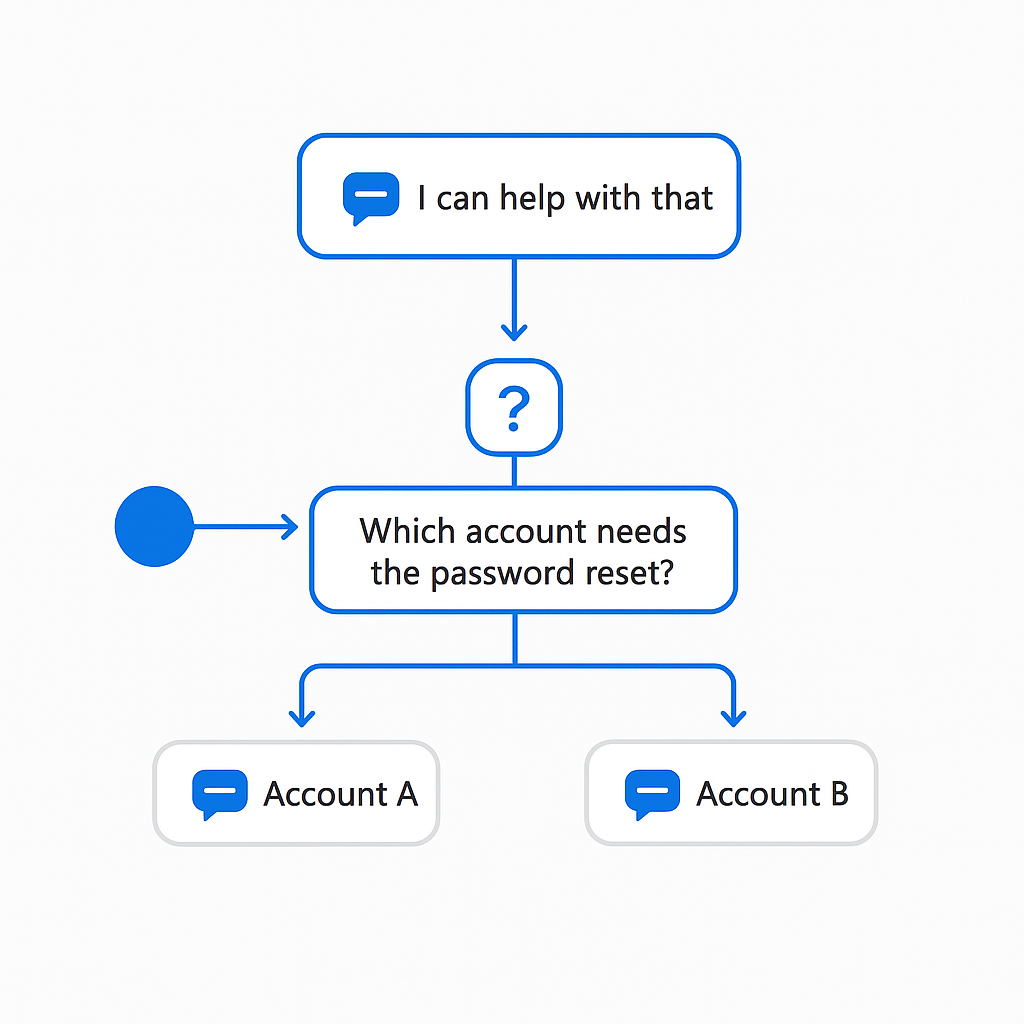
- Navigate to Topics and select Add a topic > From blank
- Name it:
Password Reset Request - Add trigger phrases:
- "I need to reset my password"
- "my password is expired"
- "locked out of my account"
- "can't log in"
- "forgot my password"
- Build the conversation flow:
- Message node: "I can help with that. I'll need to verify a few details first."
- Question node: "Which account needs the password reset?" (save to
AccountEmailvariable) - Question node: "Is this for your Microsoft 365 account or a system-specific account?" (Multiple choice: Microsoft 365, SAP, ServiceNow, Other)
- Condition node: Branch on account type
- For the Microsoft 365 branch: add a Call Action node (wired to Power Automate in Step 3)
- For Other: redirect to the system Escalate topic
The authoring best practices documentation is worth bookmarking — it reflects real-world lessons from enterprise deployments.
Step 3: Adding Power Automate Actions
Create the Power Automate Flow
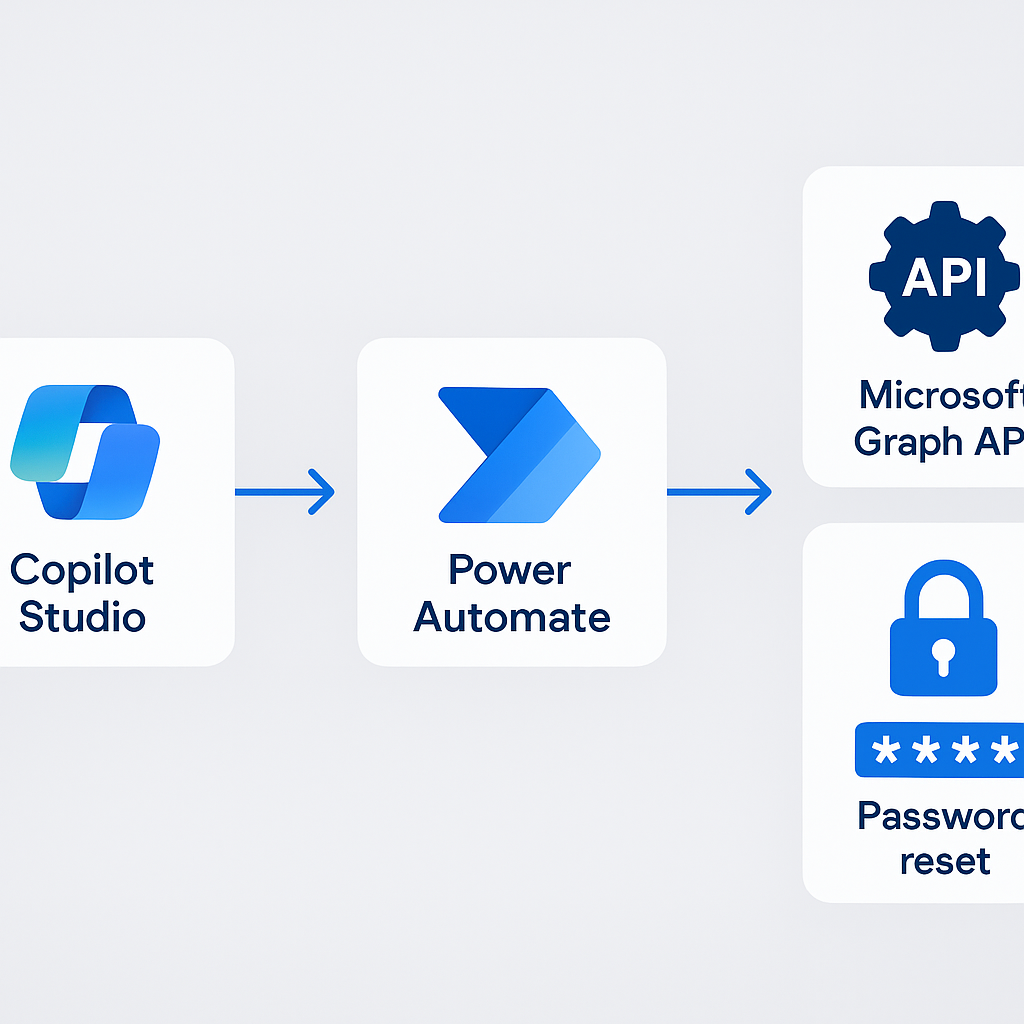
- In the topic canvas, select Add node > Call an action > Create a flow
- Power Automate opens with a pre-configured trigger: Run a flow from Copilot Studio
- Add input parameter:
AccountEmail(Text type) - Build the flow logic with a Microsoft Graph connector action to trigger a password reset via the Graph API
- Add output parameter:
ResetStatus(Text)
Sample Flow Configuration
{
  "definition": {
    "triggers": {
      "manual": {
        "type": "Request",
        "kind": "PowerAppV2",
        "inputs": {
          "schema": {
            "type": "object",
            "properties": {
              "AccountEmail": {
                "type": "string",
                "description": "Email address for the account requiring a password reset"
              }
            },
            "required": ["AccountEmail"]
          }
        }
      }
    },
    "actions": {
      "Reset_Password_Graph": {
        "type": "Http",
        "inputs": {
          "method": "POST",
          "uri": "https://graph.microsoft.com/v1.0/users/@{triggerBody()['AccountEmail']}/authentication/methods/password/resetPassword",
          "authentication": {
            "type": "ManagedServiceIdentity"
          }
        }
      }
    }
  }
}
Note: In production, use a managed identity or service principal with minimum required Graph API permissions (
UserAuthenticationMethod.ReadWrite.All). Never hardcode credentials in a flow. Review the Power Automate security documentation before deploying to production.
Step 4: Connecting to SharePoint Knowledge Base
The generative answers capability transforms how users interact with your knowledge base. Instead of building a topic for every IT policy question, you connect the agent to your SharePoint knowledge site and let the AI synthesize answers grounded in your actual documentation.
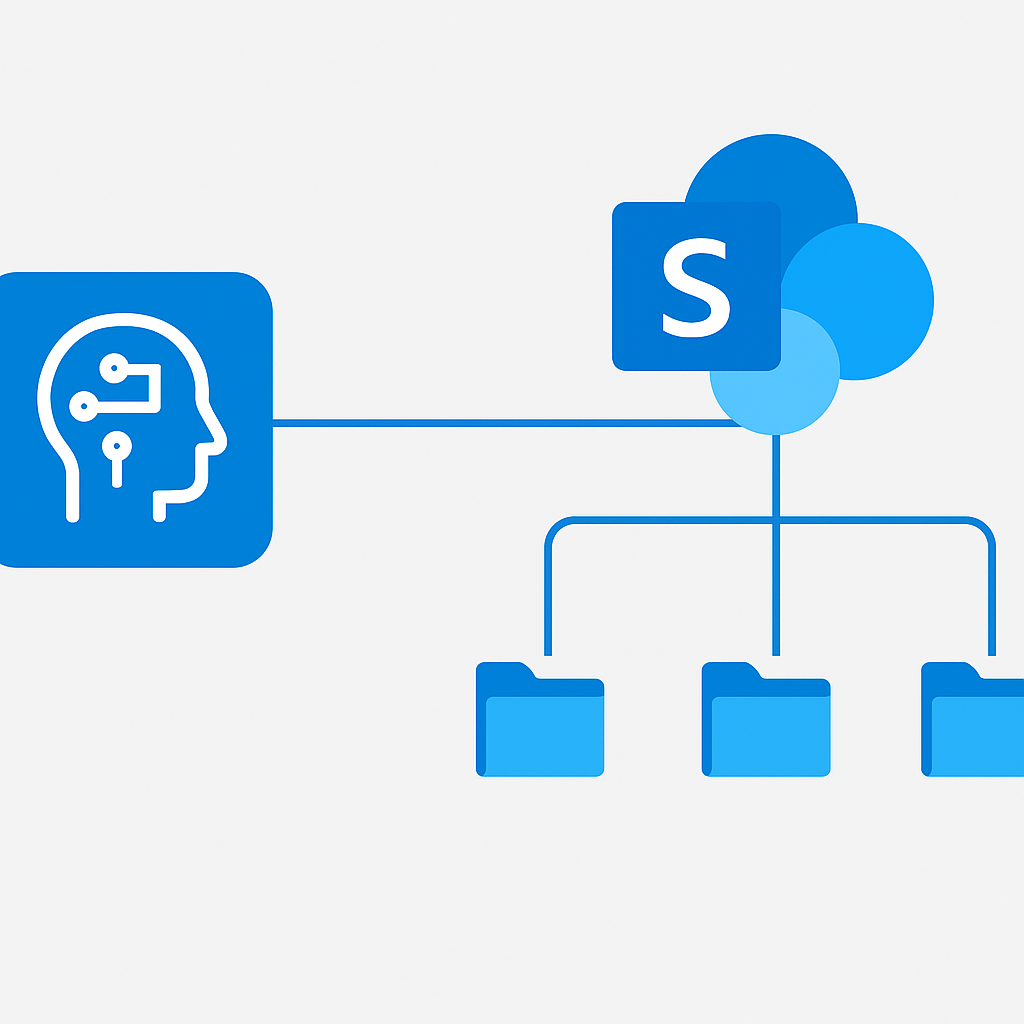
Configure the Knowledge Source
- In Copilot Studio left navigation, select Knowledge
- Select Add knowledge > SharePoint
- Enter the URL of your IT knowledge SharePoint site
- Scope to specific libraries rather than granting access to an entire intranet
Optimize Your SharePoint Content for AI Grounding
- Use descriptive page titles and headings — the model uses these as anchors when generating answers
- Keep individual articles focused — one topic per page works better than monolithic policy documents
- Use plain language — legal-ese and heavily abbreviated content degrades answer quality
- Maintain freshness — stale content produces confidently wrong answers
The knowledge sources documentation covers supported source types and indexing behavior in detail.
Step 5: Testing and Publishing to Teams
Testing in the Copilot Studio Test Pane
Before any deployment, exhaustive testing is non-negotiable. Test for:
- Happy path — expected conversation flow works end to end
- Interruptions — what happens when a user changes intent mid-conversation
- Edge cases — unexpected inputs, empty responses, very long text
- Action failures — simulate Power Automate flow failures and verify graceful handling
Publishing to Microsoft Teams
- Navigate to Channels > Microsoft Teams
- Configure the Teams app metadata: name, description, icons
- Select Add to Teams
- For enterprise deployment, export the Teams app manifest and deploy it through the Teams Admin Center using an organization-wide app policy
Note: The first time you publish to Teams, allow 24-48 hours for the app to propagate globally. Subsequent updates are typically under an hour.
Governance Considerations
Data Loss Prevention Policies
Power Platform DLP policies control which connectors your agents and flows can use. Configure your DLP policies in the Power Platform Admin Center. At minimum:
- Block all social media and consumer connectors in your enterprise environment
- Restrict SharePoint connector usage to approved sites
- Require HTTP connector usage to go through an approved API gateway
Audit Logging
All Copilot Studio activity is logged to the Microsoft Purview audit log. Monitor these key signals:
| Event Type | Why It Matters |
|---|---|
| Agent creation/modification | Detect unauthorized agent changes |
| Knowledge source additions | Monitor data access expansion |
| Channel publishing events | Track deployment surface changes |
| Escalation rate by topic | Identify underperforming topics |
| Failed action invocations | Surface integration reliability issues |
| Conversation volume spikes | Early warning for abuse or viral adoption |
Sensitivity Labels and Information Barriers
If your organization uses Microsoft Purview sensitivity labels on SharePoint content, those labels are honored by the Copilot Studio knowledge source integration — the agent will not surface content the authenticated user cannot access. For organizations with information barriers, review the information barriers documentation.
Platform Comparison
| Capability | Copilot Studio | Azure AI Foundry Agent Service | Custom LangChain/AutoGen |
|---|---|---|---|
| Time to first agent | Hours | Days | Weeks |
| M365 integration depth | Native | Connector-based | Custom development |
| Governance/compliance | Built-in (Purview, DLP) | Partial | Custom implementation |
| Code requirement | Low (no-code + pro-code) | Medium (SDK required) | High |
| Customization ceiling | Medium-High | Very High | Unlimited |
| Recommended for | Enterprise business users + IT | Developer-led AI solutions | Research + complex agents |
Next Steps
1. Implement Proactive Messaging
Shift from reactive to proactive. Copilot Studio agents can send proactive messages to users in Teams — triggered by Power Automate events. Review the proactive messaging documentation to implement this pattern.
2. Build a Multi-Agent Architecture
Explore agent handoff patterns. Copilot Studio supports connecting specialized agents, allowing a front-door agent to route complex requests to domain-specific agents. The multi-agent orchestration documentation is your next reading assignment.
3. Establish a Continuous Improvement Process
Implement a monthly review cadence covering: escalation rate by topic, CSAT scores, unanswered questions, and knowledge source freshness. The analytics overview in Copilot Studio provides the baseline metrics.
Your implementation checklist
Use this to drive your project from first conversation to production.
Plan
- [ ] Agent scope document written and signed off by business sponsor — what the agent will and will not handle
- [ ] Power Platform environment selected and DLP policy reviewed
- [ ] Knowledge sources identified, owners briefed, and content quality baseline assessed
- [ ] Licensing confirmed: Copilot Studio capacity + M365 E3/E5 for all users in scope
- [ ] Escalation path designed: what happens when the agent cannot answer
Build
- [ ] Agent created in Copilot Studio with precise, scope-bounded description and persona configured
- [ ] Core topics built and trigger phrases tested for coverage and false-positive rate
- [ ] Power Automate flows built with managed identity authentication — no hardcoded credentials
- [ ] SharePoint knowledge source connected and scoped to specific libraries (not entire intranet)
- [ ] Sensitivity label behavior verified: confirm agent does not surface restricted content to unauthorized users
Test
- [ ] Happy path tested end-to-end for every core topic
- [ ] Edge cases tested: unexpected inputs, mid-conversation intent changes, empty responses
- [ ] Action failure simulation: verify graceful degradation when Power Automate flows fail
- [ ] Escalation path verified: confirm handoff to human agent works correctly
- [ ] Pilot group of 10-20 users tested before broad rollout
Deploy
- [ ] Teams app manifest configured with correct metadata and icons
- [ ] Organization-wide app policy configured in Teams Admin Center
- [ ] Audit logging confirmed active in Microsoft Purview
- [ ] Analytics baseline established in Copilot Studio analytics dashboard
- [ ] Monthly review cadence scheduled: escalation rate, CSAT, unanswered questions, knowledge freshness
FAQ
Do I need to build every answer as a topic, or can the agent generate answers from documents?
Both. Core topics with tested trigger phrases handle the predictable, high-value questions where you want deterministic answers, while generative answers ground the agent in your knowledge sources for the long tail. Most production agents combine the two: topics for the flows that must behave exactly the same way every time, generative answers for everything else.
How do I connect SharePoint as a knowledge source without exposing restricted content?
Scope the knowledge source to specific libraries rather than the entire intranet, and verify sensitivity label behaviour before go-live. The agent honours the existing permissions of each user, so a well-governed SharePoint estate is a prerequisite — confirm during testing that the agent does not surface restricted content to unauthorised users.
How should the agent authenticate to back-end systems?
Through Power Automate flows using managed identity, never hardcoded credentials. Pair this with a reviewed Power Platform DLP policy so the connectors the agent can reach are constrained to what the use case actually needs.
What licensing is required to build and deploy a Copilot Studio agent?
Copilot Studio capacity for the agent itself, plus Microsoft 365 E3 or E5 for every user in scope. Confirm both before the build starts, because a missing licence is the most common reason a working pilot cannot be rolled out broadly.
What should happen when the agent cannot answer a question?
Design an explicit escalation path — a clean handoff to a human — and test it before launch. An agent that fails gracefully and routes the user to help keeps trust; one that returns an empty or wrong answer erodes it. Track the unanswered-question rate in the Copilot Studio analytics dashboard as part of your monthly review.
Resources
- What is Microsoft Copilot Studio
- Copilot Studio licensing overview
- Generative answers and knowledge grounding
- Publishing to channels
- Multilingual agents
- Authoring best practices
- Knowledge sources in Copilot Studio
- Power Automate security guidance
- Power Platform DLP policies
- Copilot Studio audit logging
- Microsoft Purview information barriers
- Proactive messaging in Copilot Studio
- Multi-agent orchestration fundamentals
- Copilot Studio analytics overview
- Teams app deployment via Admin Center
Questions or feedback? Reach me at [email protected].